How to - Phone Tips Tricks
Samsung Galaxy and iPhone
Question: How can I backup/copy/offload my photos and videos from my phone?
Answer: Yes you can with the Samsung and iPhones using their USB-C port and a flash drive. Your phone has Internal Storage but
you can access External Storage as well using an external flash drive.
You need a flash drive with enough capacity to hold all you intend to copy over/offload.
Running out of space on your phone? Copy your photos and videos to a flash drive. But before you delete anything, be sure to copy to a second
storage device in case one is lost or becomes inoperable.
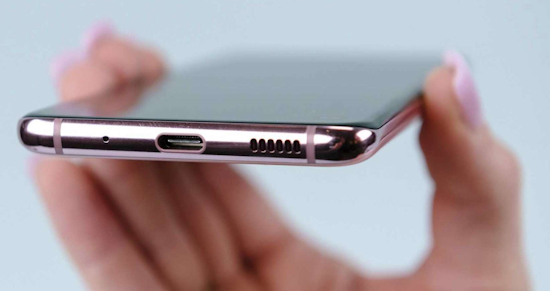
USB Type C port found on mobile phones
Flash Drives
Storage capacities of 32 GB, 64 GB, 128 GB, 256 GB, 512 GB, 1 TB, 2 TB are available with cost increasing with more capacity.
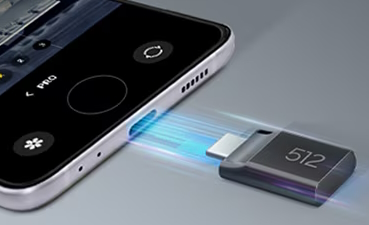
You can use a standard USB-A flash drive by connecting an adapter which has a USB-C male connector and USB-A female port or you can use
a combo USB-A / USB-C flash drive.
• USB Flash Drive USB C and USB A Dual Ports

iPhone - Copy to External Storage
iPhone - How to copy photos and videos to external storage
How to Copy/Transfer Your Photos and Videos from iPhone to Flash Drive Storage
Insert the flash drive firmly into the bottom of your iPhone (USB Type C port).

Tap on the "Photos app" and then tap on "Select" (upper right corner) to select the pictures you want to transfer. Start selecting the photos by
tapping on each photo.
Trick to select all photos at once on iPhone:
Tap and hold down on the last photo at the very bottom right. Continue to hold down while dragging finger in an L pattern, right to left and up. While
continuing to hold down, tap with another finger, the very top where the time appears and then continue to drag finger up to complete the last selections.
All photos should now show selected.
Tap the Share icon in the lower-left corner (it looks like an arrow pointing out of a box).

Scroll down to "Save to Files" option or choose "Export Unmodified Originals" and make sure your flash drive is selected as the destination.

Files will be shown so
Tap on the upper left BACK arrow to go to "Locations" and tap on your USB Flash Drive.

Next choose the folder you want to use for saving if desired.
Next, Tap "Save" in the upper-right corner.
Files will now be saved to the USB Flash Drive so wait for completion.
Your photos are now on your flash drive.
To verify, select the "Files" app and look for the photos there on the flash drive.
Once on the Flash drive, they can be available to a computer, another phone, and more.
Samsung Galaxy phone - Copy to External Storage
Samsung Phone - How to copy photos and videos to external storage
How to Copy Your Photos from Samsung phone to a Flash Drive
Plug in your flash drive:
Use a USB-C flash drive like the PNY DUO Link and connect it directly to the bottom of your Samsung phone.
Open the "My Files" app:
Find and open the built-in Samsung "My Files" app.
Tap on "Images", tap Select, choose the ones you want (or tap All), then tap "Copy".
Choose your flash drive as the destination
Tap USB storage, create a new folder, if desired, then tap Copy here.
Repeat for any videos you want to copy to external storage
Tap on the Videos section in "My Files" and follow the same steps to copy them to your flash drive.
Safely unmount your flash drive:
Before removing it, tap the USB drive name in My Files, then select "Unmount" to prevent data loss.
Detailed Step by Step - Samsung Phone How to copy photos and videos to flash drive storage
1. Connect the Drive
Plug a USB-C flash drive into your Samsung USB-C phone port. If your flash drive has a rectangular USB-A plug, use a small "USB-A to USB-C" adapter.
2. Open the File Manager app:
Swipe up from your screen to see your apps.
Find and open the "My Files" app (it usually sits in a gold color folder in the "Samsung" icon).
3. Select Your Photos
Tap Images in the menu.
Tap the three dots (or the More button) at the top and hit "Select".
Tap the All circle at the top left to select every photo or select each of the photos you want to copy.
4. Copy to the Flash Drive:
Tap Copy at the bottom of the screen.
Tap the Back arrow to return to the main My Files screen.
Tap USB Storage.
(Optional) Tap the three dots in the top right, select Create folder, and name it "My Photos".
Tap "Copy here".
Wait for the copy process to complete.
5. Safely Remove the Drive:
Unplugging a flash drive while your phone is using it can corrupt your files.
In the My Files app, look under the storage section for your USB Storage.
Tap the three dots or the arrow next to it, and select "Unmount".
Now it is safe to pull the flash drive out of your phone.
For more tips or specific troubleshooting steps directly from the manufacturer,
check out the Samsung Photo Management Guide.
Delete photos - Samsung phone
To delete photos from your Samsung phone, open the Gallery app, tap and hold the photo you want to remove,
and tap Delete at the bottom of the screen.
The photo moves to the Trash bin, where it stays for 30 days before being permanently deleted.
Deleting Photos from the Gallery
Open the Gallery app on your Samsung phone.
Tap and hold a photo to select it, then tap any other photos you want to delete at the same time.
Tap the Delete (trash can) icon at the bottom of the screen.
Tap Move to recycle bin when prompted.
Deleting Photos Permanently
To free up storage space immediately or remove photos permanently,
you need to empty the Trash bin.
In the Gallery app, tap the Menu icon (three lines) in the bottom-right corner.
Tap Recycle bin or Trash.
Tap the three dots in the top-right corner.
Tap Empty and confirm by selecting Empty Recycle Bin.
• Connect Phone to Stereo
Columbia ISA Audio Video
Empowering consumers through information
SWS
|
|
|