
|
|
|
Connect Smartphone to Stereo Speakers WIRED CONNECTIONS See Wireless Connections below There are at least five types of connections you may find on a mobile phone, although most modern phones will have a USB-C port. These connections handle the charging and data transfer functions. 1. Apple iPhone 30 pin connector (older phones 2007 to 2011) 2. Apple iPhone Lightning connector (older phones 2012 to 2023) 3. Mini USB connector (older phones 2003 to 2008) 4. Android Micro USB connector (older phones 2008 to 2017) 5. USB-C connector (current Apple 2023 to date and Android 2017 to date phones) 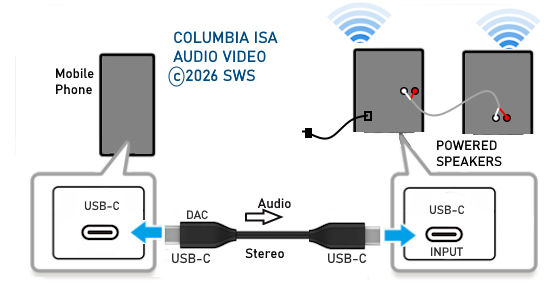 Connection Diagram Smartphone to powered stereo speakers using USB-C to USB-C cable Phone has USB-C port and speakers have USB-C input port  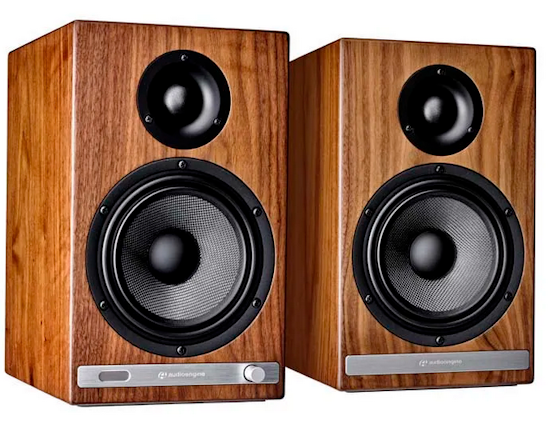  Powered speakers - Rear Stereo powered speakers have an internal amplifier and offer a variety of inputs from RCA (white/red) to Aux (3.5mm) to USB. Speakers with wireless Bluetooth capability will have a pairing button and a LED to indicate when paired. 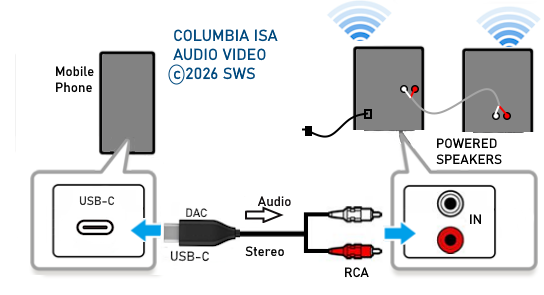 Connection Diagram Smartphone to powered stereo speakers using USB-C to RCA analog stereo cable Phone has USB-C port and speakers have RCA stereo input ports  By using the correct adapter cable, you can connect the phone to a stereo, computer or TV. You can connect mobile phone to a laptop using USB cable and then connect laptop to TV using HDMI cable to play music from the phone to the TV. Turn up the volume on the TV and listen to songs using better speakers than the speakers in the phone. This allows free movement around a room without holding a phone or having something in your ears. 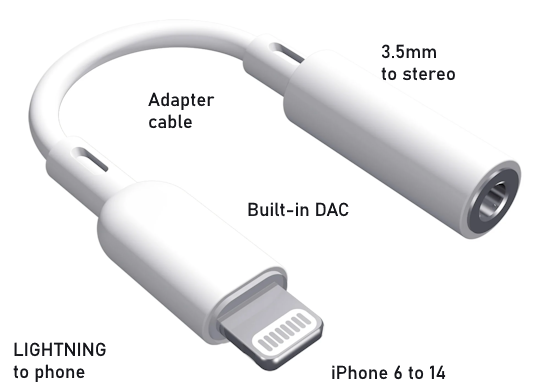 Adapter cable - Lightning to 3.5mm for headphones or stereo connection 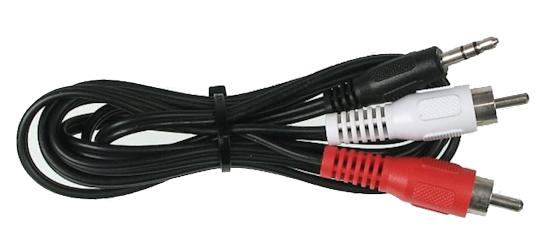 3.5mm to RCA stereo for analog audio You can connect the two RCA plugs into the CD or AUX inputs on the stereo. Never use the PHONO input. For stereos without analog audio inputs such as AUX or CD, you can use any RCA analog audio inputs such as DVD, Sat, Cable, then remember which one you connected so you can switch to that source input on the stereo. 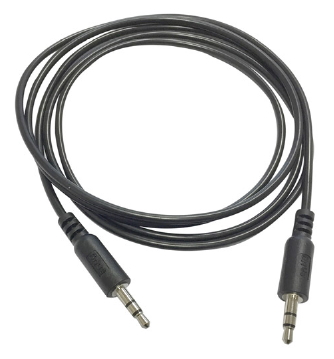 3.5mm to 3.5mm for mini-stereo 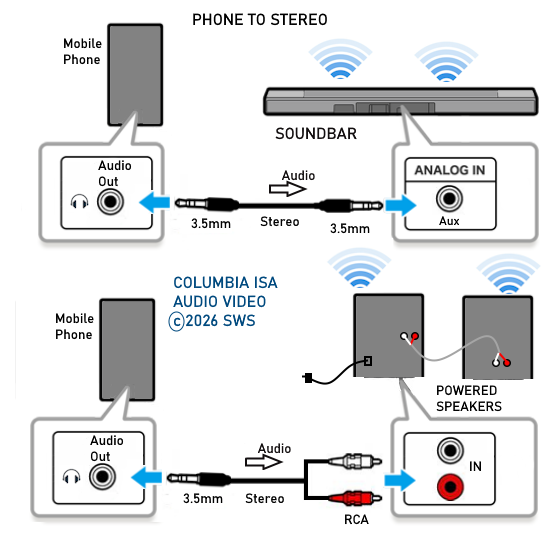 Mobile phones with a 3.5mm headphone output can be connected to a soundbar or powered speakers or Audio/Video Receiver. 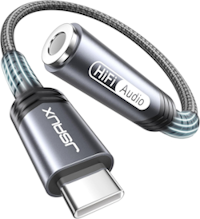 To use wired 3.5mm headphones or analog audio connections with a Android USB-C phone (which lacks a headphone jack), you need a USB-C to 3.5mm adapter with a built-in DAC (Digital-to-Analog Converter). 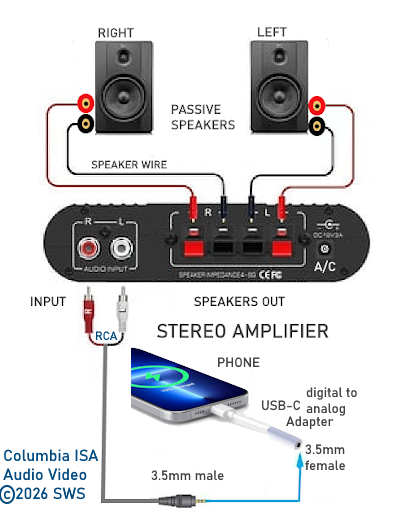 Phone to Stereo Connection Diagram On your phone, play music files with the default media player or use apps such as VLC. Listen to the music on the stereo through connected loudspeakers for a richer sound experience. 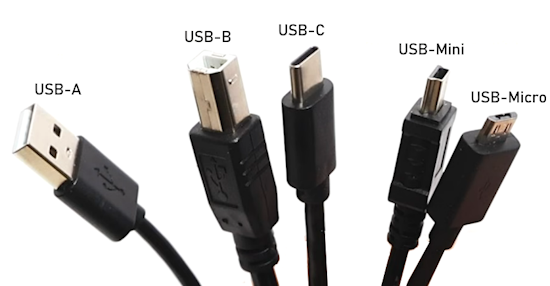 A few USB Types Connect Mobile Phone to Stereo or Computer Wired or Wireless Wired connections use the USB-C port found on most mobile phones since 2020. Older phones use Micro USB (Android), or the Apple Lightning or 30 pin connections. Wireless connections can use Bluetooth or Wi-Fi. There are many options to listen to music from your phone. Earbuds, headphones, stereo amplifier, computer, soundbar, powered speakers, TV and more. 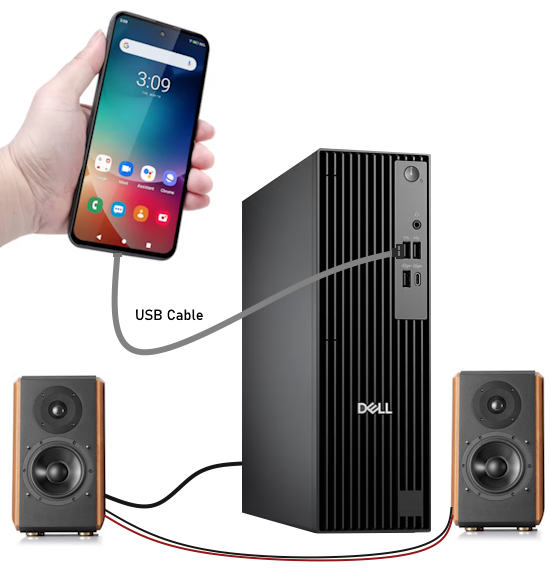 A hardwire cable connection from mobile phone to computer Android phone with micro USB connects to Windows PC with USB Type A port. This cable is standard for charging and data transfer using USB MTP (media transfer protocol). Connect phone to computer. Look in Windows File Explorer to find under "This PC" your phone name and expand the directory (click on it) to find files on your phone. You can view photos, play music etc. Music will play on the computer using a media player on the computer. 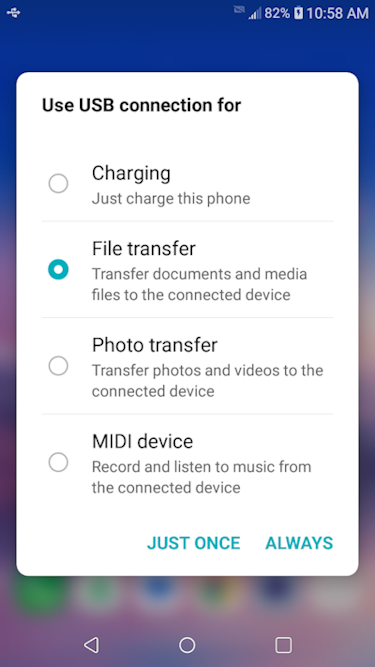 After connecting USB cable, select "File Transfer" on phone. 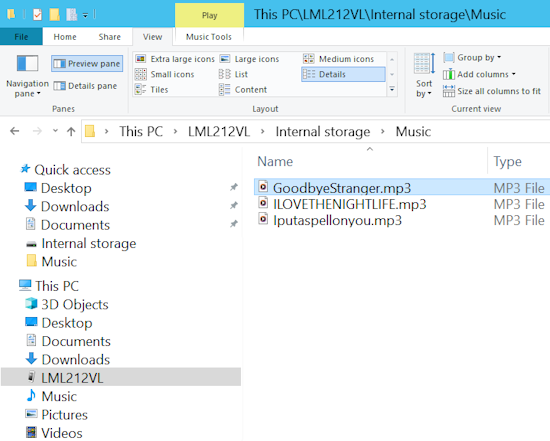 Windows File Explorer - click on your phone name, click on Internal Storage, click on music file to play on computer. The computer can be connected to a stereo amplifier using the line out/speakers output port on the computer to a line input such as RCA (white and red) input for a CD player. Use the computer as your music hub. 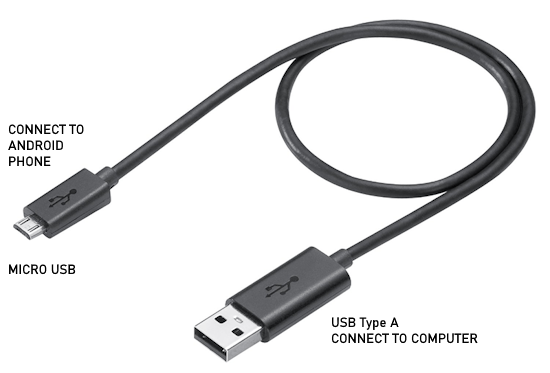 The USB cable connection can charge the phone from the computer or by selecting the media transfer protocol option, access files on the phone including music files. Using the computer's built-in speakers or external speakers, songs can be amplified for richer sound. 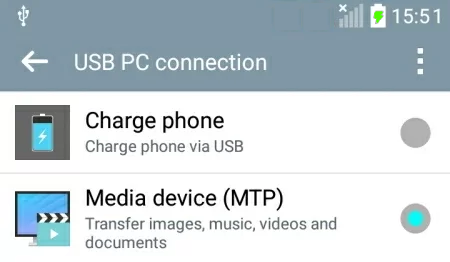 Below is a USB chart that will show the types of USB connectors and the USB Standard they support:
Not all USB-C ports are the same; while the connector shape is standardized, the underlying technology and capabilities (data speed, power delivery, video output) vary significantly between devices and cables, leading to potential confusion and performance differences. A USB-C port can support anything from USB 2.0 speeds to much higher speeds, along with power delivery (PD) for charging and video output (DisplayPort/HDMI), but not every USB-C port implements all features and not every cable supports all features. The best audio connection from a mobile phone to a receiver for high-fidelity sound is a wired USB-C to USB-B cable (using the receiver's DAC). High-quality USB-C to USB-B cables for audio are essential for connecting modern laptops (Mac/PC), tablets, or phones to DACs, audio interfaces, receivers, powered speakers and more.  USB 2.0 supports exceptionally high audio quality, capable of handling up to 32-bit/384kHz audio and DSD512 via the USB Audio Class 2.0 (UAC2) standard. With a 480Mbps bandwidth, it effortlessly manages high-resolution stereo or multi-channel audio without quality limitations. It is commonly used for high-end professional interfaces, as the bottleneck is rarely the USB speed itself. USB 2.0 is sufficient for high-quality audio transmission: USB 2.0 Audio Capabilities: Maximum Resolution: USB 2.0 with UAC2 supports up to 32-bit/384kHz PCM and DSD512. Bandwidth: 480Mbps (High Speed) allows for 40+ channels of 24-bit/96kHz audio simultaneously. Standards: USB Audio Class 1.0 (UAC1) is limited to 24-bit/96kHz. USB Audio Class 2.0 (UAC2) is needed for high-resolution audio (above 96kHz) and works with USB 2.0. Real-World Usage: Many professional audio interfaces from brands like RME use USB 2.0 because it provides enough bandwidth and lower latency than required for most, if not all, high-end audio applications. Audio Quality Impact: Digital data transmission over USB does not degrade audio quality; however, issues like jitter can occur if the USB device (DAC) is poorly implemented. USB 2.0 provides the maximum possible quality for stereo audio and is more than sufficient for high-fidelity audio up to 32-bit/384kHz USB-C Pins for Audio: Data+ (Dp1) / Data- (Dn1): Pins A6 and A7 are the primary differential pairs for USB 2.0 digital audio data. 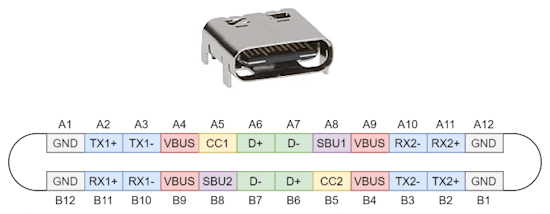 VBUS & GND: Pins A4, A9, B4, B9 (VBUS) provide 5V power, while A1, A12, B1, B12 (GND) provide the ground return path. CC1/CC2 (A5/B5): Used to detect the device, negotiate power, and activate audio accessory modes. Analog Audio Mode: When in audio accessory mode, A6 becomes Analog Audio Left, A7 becomes Analog Audio Right, SBU1 (A8) is MIC, and SBU2 (B8) is AGND. USB-C to USB-B Cable (DAC Input): This is considered the best for audio quality because it bypasses the phone's lower-quality, built-in digital-to-analog converter (DAC) and uses the superior DAC in your receiver. 3.5mm to RCA Cable: A highly reliable, hardwired, and affordable option that provides great stereo sound quality, though it requires an adapter for modern phones without a headphone jack. High-Res Bluetooth Receiver (AptX HD/LDAC): For wireless convenience without sacrificing much audio quality, a dedicated Bluetooth adapter that supports high-resolution codecs is ideal. Wi-Fi/Streaming (Google Chromecast Audio or Apple AirPlay): Offers high-resolution, lossless, or better-than-Bluetooth quality by transmitting the audio data directly to the receiver over your home network. • iPhone headphones Stereo Hookup • Connect Speakers to TV Wireless Connections Bluetooth wireless connection: Phone to Stereo  Many people use Bluetooth for a wireless connection from mobile phone to stereo, headset or earbuds. It is nice to not have wires to deal with. Bluetooth capable stereo devices: Bluetooth Audio Receivers: These small devices plug into older, wired stereos using standard cables. They capture the wireless signal from your phone and send it to your speakers as an analog signal. 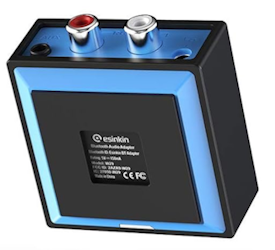 BookShelf Systems: These are all-in-one music centers. They usually include a built-in amplifier, a CD player, and Bluetooth so you can play music from any app.  Bluetooth Speakers: These portable speakers run on batteries and can be taken outdoors on the go. Some are handheld size and waterproof. 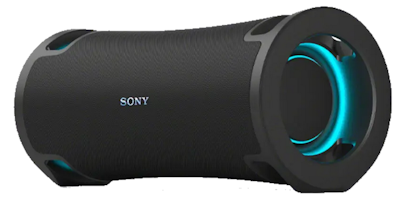 Powered Stereo Speakers: These are compact speakers that already have a Bluetooth amplifier built inside. You just plug the main speaker into the wall outlet, connect the second passive speaker to the main powered speaker and pair your phone for sending music wirelessly from phone to stereo speakers. 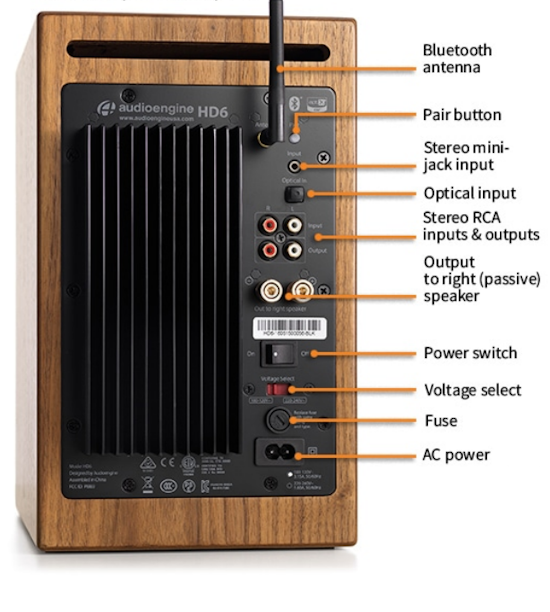 Stereo Receivers and A/V Receivers: The hub switching center of a large home theater setup. They let you connect traditional passive wired speakers, turntables, CD players and also stream via wireless Bluetooth from a mobile phone.  Headphones and Earbuds: Bluetooth capable headphones and the smaller earbuds allow private listening to stereo from your phone. 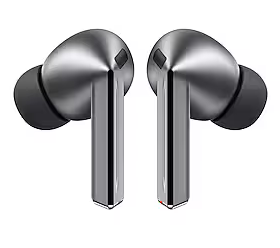 Smart TV: LG, Samsung and other smart TV makers offer built-in video and audio mirroring capability from your mobile phone to the TV. For Bluetooth wireless phone connection to smart TV for music, be sure Bluetooth is turned "ON" on both devices. Press the "HOME" button on the TV remote. On a recent LG TV, go to "Home Hub" and select "Connect Mobile Device" and "Sound Share". On a recent Samsung phone, swipe down on the right to select "Bluetooth" and see the TV name in the list of available devices. Select the TV to pair and connect. You may see a code the first time you pair. Select OK or YES or CONNECT or PAIR. Next, on the phone, go into file folders and select "Audio" to bring up your music files. Select the song you want to play. Your music app or apps should show up to allow you to select the app to use to play the song. Download a music player app if you need to. You should hear the sounds coming from the TV speakers. You can adjust the volume using the TV remote. If desired, you can connect the TV sound output to a Audio/Video Receiver or stereo receiver so you can use the larger speakers or you can connect to powered speakers using the TV optical audio output. Car Adapters: These plug into your car's power port and connect to the auxiliary (aux) input. They let you send Bluetooth music to older car stereos Most car stereos today feature both Android Auto and Apple CarPlay. This allows drivers to connect any modern smartphone. Bluetooth became a standard feature in mobile phones around 2001-2003, however, the original iPhone (2007) which included Bluetooth 2.0, was very limited compared to modern devices. It was primarily designed to connect with a specific mono Bluetooth headset for phone calls. It did not support stereo audio streaming (A2DP) or file transfers. The iPhone 7 (and 7 Plus), released in 2016, was the first iPhone model to feature stereo playback through its built-in speakers. Stereo Bluetooth (A2DP): While the original iPhone did not support stereo Bluetooth, support for A2DP (Advanced Audio Distribution Profile) for stereo streaming to headphones/speakers was added via software updates, specifically with the iPhone 3GS in 2009. The iPhone 4 supported Bluetooth audio streaming (A2DP) for wireless music. Most Android phones supported A2DP (Advanced Audio Distribution Profile) bluetooth audio streaming by 2009, coinciding with the release of Android 1.5 (Cupcake). Bluetooth is a standard for short distance radio signals (2.4GHz) between devices in order to exchange information. Bluetooth wireless audio is offered on TV, soundbars, powered speakers, computers, headphones, stereo receivers, audio video receivers, car stereo and can be added to a device with adapters. Data can be sent from one mobile phone to another using wireless Bluetooth. How to Play music from phone to Bluetooth Audio Video Receiver with speakers Step-by-Step: Process to Pair and Connect Phone to Bluetooth Denon Receiver Power ON A/V Receiver Press the Bluetooth button on your A/V Receiver's remote control to make "Bluetooth" the active input source. Press and hold the Bluetooth button on your remote for at least three seconds. Alternatively, if "Bluetooth" is on your screen, press the OPTION button, use the arrows to select Pairing Mode, and press ENTER. The AVR display will show the receiver is ready to pair. Turn on the Phone's Bluetooth: Open your phone's Settings and turn Bluetooth on. Wait for your phone to scan for nearby devices. Rescan if needed. From the list on the phone, Tap on your Denon receiver's name when it appears on the screen. To confirm, a pairing code or numbers may appear on your AVR display and phone screen. Ensure they match and select "Pair" on your phone. It may take a minute or so to connect. Play music on the phone. Adjust volume. You can now listen wirelessly from phone to AVR's speakers. How to play music from your mobile phone to stereo Although this method is wireless, try to stay within 30 feet or so of the receiving device for best results. Turn "ON" Bluetooth on your phone. Go to SETTINGS and then Connected Devices/Connections and then BLUETOOTH. Switch ON to enable Bluetooth communications. When Bluetooth is enabled, you should see a list of available devices. Some may be from previous connections. Power ON your Bluetooth device (headphones for example) and press the Bluetooth Pairing button. Many Bluetooth devices have voice notifications to inform you what status the device is in such as "Power On" or "Pairing" or "Power Off". Once the device is in Pairing Mode, you should see the name of the device on the phone in the list of available devices. Tap the Search/Scan icon to refresh if needed. In the list of devices, tap the SEARCH/SCAN/REFRESH icon to refresh the available Bluetooth devices so you can pair and connect. The name of the Bluetooth device may not be obvious as manufacturers sometimes use model numbers. Tap on the name of the device you want to pair in the list to pair and connect. 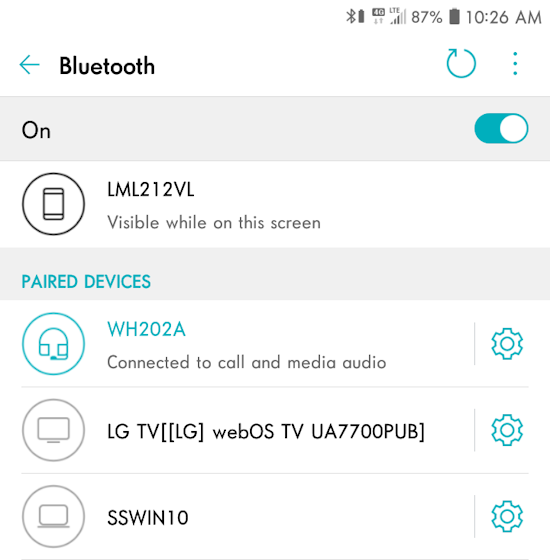 Android phone - Bluetooth devices in list The headphones icon showing paired and connected. Previously connected devices will be stored but will need to be paired again to be useful. Once connected, you can go to your music player on the phone, play a song and listen on the Bluetooth device wirelessly. My Bluetooth device will not pair. What can I do? Move the device closer to the phone and try again. Be sure power is on and device is in pairing mode. Tap on the gear icon on the same line as the device you are trying to pair (previously paired) and then UNPAIR the device. Next, try to pair again. You can try resetting the phone network connections Only do this if you can restore your previous network settings as they will be erased. On the Android phone, go to: Settings > backup & reset > Network settings reset > Reset settings > Reset Other Android phones, go to: Settings > System > Restart & reset > Network settings reset > Reset Disable Bluetooth on the phone Power off the phone Power off the bluetooth device Power ON Bluetooth device and put into pairing mode Power on the phone and enable Bluetooth See if bluetooth device appears in the list now so you can pair and connect. Other advanced options: Clear the cache in the Bluetooth App on the phone Settings > Apps & notifications > App info > be sure system apps are showing (select show system) > Bluetooth > Storage > Clear cache. How to play music from your mobile phone to a Microsoft Windows Computer Wirelessly Windows needs an app to play music wirelessly from your phone. Windows 10 (version 2004 and later) and Windows 11 are the primary operating systems that can act as a Bluetooth audio receiver. Using the "Bluetooth Audio Receiver" app from the Microsoft Store, these systems can pair with phones or tablets to play audio through the PC's speakers via A2DP. Download the free "Bluetooth Audio Receiver" app from the Microsoft Store online and then install the app on the computer. • Bluetooth Audio Receiver app download Pair your phone with your computer. On the phone, Go to "Settings" > Bluetooth > Switch Bluetooth "On" Computer must have a Bluetooth receiver, either built-in like most laptops do, or added as an adapter such as a USB-A Bluetooth adapter. OS: Windows 10 version 19041.0 or later. On the computer, Go to "Settings" > Bluetooth Devices > Add device. A search of nearby devices should show your phone. Connect to your phone and then run the app "Bluetooth Audio Receiver". 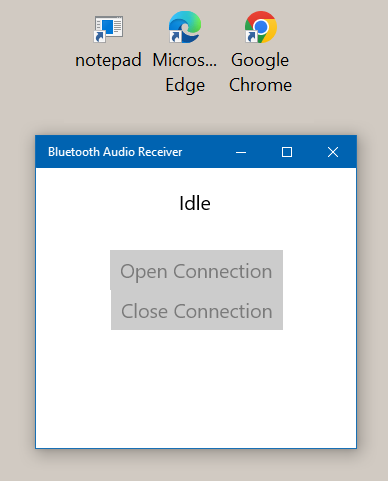 No devices connected yet Next select your phone name in the app and click on "Open Connection" to connect. 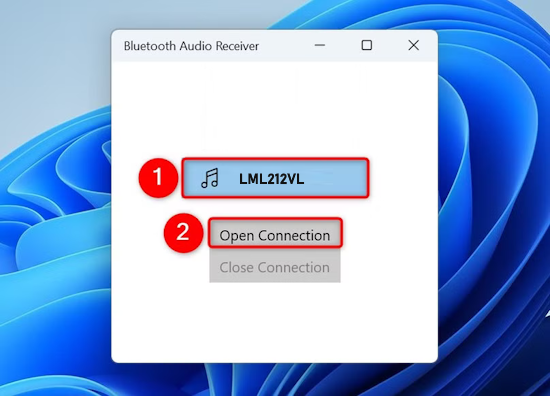 Next, on your phone, select the Music folder and then select the file you want to play. Your phone plays the song and you hear the music on the computer's speakers or other receiving device. Adjust the volume on the phone and the device. The app "Bluetooth Audio Receiver" will remember previously connected devices. If you want to then connect the computer to a stereo receiver with attached speakers, connect a 3.5mm to RCA audio cable from computer to stereo RCA input and switch stereo to that input. 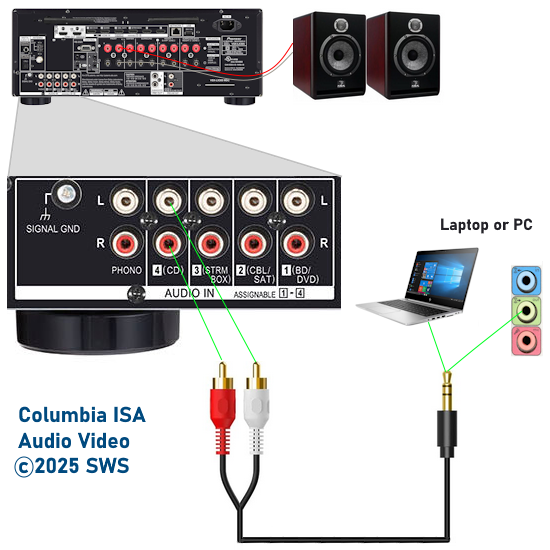 Connect Phone to Stereo wirelessly with Bluetooth Vintage Stereo Receivers The older stereo receivers do not have built-in Bluetooth but using a small Bluetooth receiver device, you can adapt them so that you can wirelessly send audio from your phone and listen on the loudspeakers. There are many different Bluetooth adapter receivers. 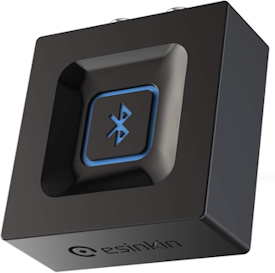 Bluetooth Audio Receiver This Bluetooth adapter offers both 3.5mm and RCA stereo output ports.  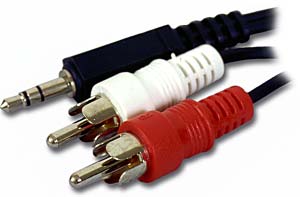 Connect the Bluetooth receiver/adapter to the stereo using the 3.5mm or the RCA (white and red) cables. Use "Aux" or other analog audio line level inputs on the stereo. Bluetooth pairing process On your phone, enable Bluetooth under "Settings" > "Bluetooth" and then press the Bluetooth button on the Bluetooth receiver/adapter. Look on the phone for the name of the Bluetooth receiver and connect. Adjust the volume on the phone and if needed, increase the volume on the stereo. Play music on the phone and listen on the stereo loudspeakers. Audio Video Receivers with built-in Bluetooth Select "Bluetooth" mode. To pair your phone to a modern Denon AVR, power on the receiver, set the input source to "Bluetooth," (hold the Bluetooth button on the remote for 3-5 seconds) until it shows "Pairing" on the AVR front display. Then, select the Denon AVR in your phone's Bluetooth settings devices list to connect. If a pairing code is displayed, select "Pair" to connect. For Yamaha AV Receiver: Press the Setup button on your remote. Navigate to Bluetooth, ensure it is turned ON, and press and hold the Play button for three seconds to enter pairing mode. For Sony AV Receiver: • YouTube Video Sony AVR Bluetooth How to screen mirror your Samsung Galaxy phone to your smart TV for video and audio wirelessly Using Wi-Fi to stream video and audio from phone to TV (and on to a stereo if desired) Be sure Wi-Fi is enabled on the TV and phone. Some TVs can use Wi-Fi Direct so that you do not need to be connected to your network. On the Samsung phone, swipe down on right top of screen to bring up SMARTVIEW icon. If you do not see the SmartView icon, tap the edit (pencil) icon to move SmartView into your active Quick Settings Panel.  Tap on "Smart View" to bring up a list of devices. Look for your TV name and tap on it. A brief message may appear on the TV screen showing a request for connection from phone to TV. The phone screen should now appear on the TV screen. You can play music on the phone and hear on the TV. You can watch videos on the big screen. Adjust the volume. When finished, tap on "SmartView" icon and the phone/TV connection will disconnect. VLC and GoogleCast An alternative method to play music wirelessly from phone to smart TV using your Wi-Fi network is to use GoogleCast and an app like VLC on your phone which has casting capability and native support for GoogleCast. Select a song to play, select the app such as VLC to play it and in the app, select the casting icon and you should hear the music on the TV speakers.  VLC Media Player Cast icon Recent Smart TVs such as LG and Samsung have a built-in app to receive Googlecast or Airplay. Just select one on the TV depending on your type of phone. Connect the TV audio output to a stereo, soundbar, powered speakers or A/V Receiver to use larger speakers for richer sound. Older TVs with HDMI inputs but no support for Apple Airplay can still be used by getting an Apple TV 4K box which connects to the iPhone for video, audio and device mirroring. The recent ROKU streaming TV stick and the Amazon Fire TV stick also support wireless Apple Airplay. There are other devices available which support GoogleCast, Airplay and Miracast. • Apple iPhone to TV wired and wireless YouTube video USB-C cable connection USB-C supports USB 2.0. USB-C is fully backward compatible with older protocols, including USB 2.0 (480 Mbps), by using specific pins (D+/D-) for data transfer. Many USB-C cables, especially charging-only or budget cables, are designed specifically for USB 2.0 speeds, while still providing the convenience of a reversible connector. 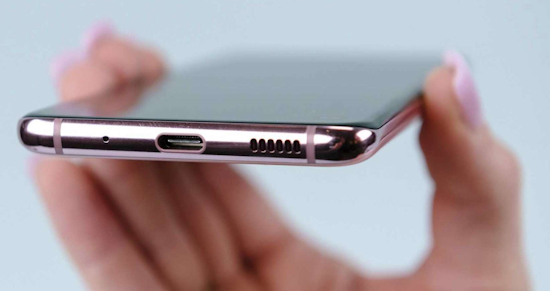 Samsung Galaxy USB-C port USB-C Headphones Almost all dedicated USB-C headphones and earbuds have a built-in Digital-to-Analog Converter (DAC) and amplifier (active headphones). Because USB-C ports on modern smartphones and laptops typically output digital audio signals rather than analog, the earphones and headphones must convert this signal internally using a DAC to produce the analog sound. 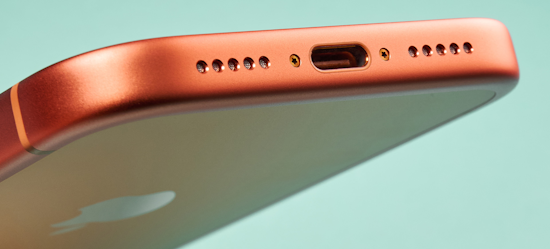 Apple iPhone17 USB-C port  The Apple iPhone USB-C to 3.5mm dongle and the Samsung equivalent are largely interchangeable , as both work on iPhones (15/16/17) and Samsung Galaxy devices, supporting audio and microphone controls. They are both active adapters with built-in digital-to-analog converters (DACs). Key differences between the two include: Volume: The Samsung adapter is generally louder than the Apple adapter when used with the same device. Compatibility: While both work on both platforms, the Apple dongle may have lower maximum volume on Android devices due to software limitations. Both are excellent, high-fidelity options, and using either brand will work perfectly fine for connecting wired headphones. Note: Some USB-C to 3.5mm adapters do not have the microphone input connection, only audio output while others have both audio output and microphone input. Samsung Galaxy phones (S20 series and later) do not have a built-in DAC (digital to analog converter) to convert audio for wired headphones via the USB-C port, as they lack a 3.5mm headphone jack. Instead, they require a USB-C to 3.5mm adapter dongle with a built-in DAC (digital-to-analog converter) to output analog audio, meaning the conversion happens in the adapter dongle (DAC chip), not in the phone itself as was the case in the past with 3.5mm headphone jacks on the phones. So, modern phones output a digital audio signal from the USB-C jack. No Analog Support: Samsung has removed analog audio support over USB-C, so passive adapter cables (no DAC chip) do not work; an "active" adapter cable (one with a DAC chip) is mandatory. Samsung sells a USB Type-C to 3.5mm adapter cable that includes a DAC to convert digital signals to analog. Third-Party Options: Other USB-C DAC adapter dongles, such as those from FiiO, Meizu, or THX, are compatible and often provide better audio quality than the standard adapter. Exceptions: Some older, mid-range, or specific regional models might differ, but for flagship S-series, a DAC-enabled adapter is required. Note: Samsung Galaxy S model phones do have an internal Digital-to-Analog Converter (DAC) to process audio for their internal speakers. While newer models (S20 onwards) lack a 3.5mm headphone jack, they still contain a, or several, internal DACs to convert digital signals into analog sound for the built-in stereo speakers. Samsung Galaxy S model phones have an internal Digital-to-Analog Converter (DAC) to process audio for their speakers . While newer models (S20 onwards) lack a 3.5mm headphone jack, they still contain a, or several, internal DACs to convert digital signals into analog sound for the built-in stereo speakers Samsung Galaxy S model phones have an internal Digital-to-Analog Converter (DAC) to process audio for their speakers. Every phone requires an internal DAC to produce sound from its internal speakers but not a DAC for external headphones or speakers. DAC - Digital to Analog Converter Dongle DACs USB-C cables are not all created equal. They can have different current and voltage ratings, support only USB 2.0 or up to USB 4, be eMarked or non-eMarked, passive or active, and support alternate modes. Not all USB-C cables are the same as far as the number of wires and pins used, making USB-C cables a bit confusing. Some USB-C cables are designed solely for charging, while others can handle both charging and data transfer. Most USB-C cables have an electronic marker chip embedded in the cable known as an eMark. eMarked cables can provide information about the cable's capabilities, including maximum power rating in the form of max voltage and current, speed, active pins, cable length, the cables Vendor ID, Product ID, and certification ID, and finally whether the cable supports any alternate modes such as Thunderbolt. A small USB tester device such as the FNB58 can read and display the information in the eMark chip. Non-eMarked cables do not provide the same level of performance and devices will have to assume a conservative rating for the cable. The standard conservative rating is a maximum of 20V at 3A (60W) with a maximum speed of USB 3.2 at 5Gbps. A full featured standard USB-C connector has 24 pins (12 on each side) to support reversible plugging, charging, and data, including digital audio. For analog audio, USB-C uses special modes, often requiring fewer pins (typically 6-16) depending on whether it has an active digital to analog converter or a simple passive cable. USB-C cables can also have specific requirements to support alternate modes like Thunderbolt. These modes allow for the transmission of high-quality video and audio signals, with support for video resolutions up to 8K. Devices can identify the type of cable they are connected to using Discover Identity, Discover SVID, and Discover Mode messages similar to how two devices identify their alt-mode capabilities. These messages provide information about the cable's capabilities. USB-C Audio Pinout Details: Total Pins: The physical receptacle has 24 pins, but many cables use fewer wires. Analog Audio (Audio Adapter Accessory Mode): Requires specific pins to route audio (e.g., A6, A7, A8) to bypass the digital to analog converter. Digital Audio (USB Audio Class): Uses the standard data pins (D+/D-, or 3.0/4.0 high-speed pairs) to send digital signals to an external DAC (Digital-to-Analog Converter). Mandatory Pins: Regardless of audio type, 4 ground and 4 power pins are generally required, along with configuration channel (CC) pins. For most audio applications (headphones, DACs), a standard USB-C cable with 16 to 24 pins is used.  USB Standards and Naming The letter (e.g., 'C' or 'A') denotes the shape of the port. C=oval while A=rectangular The number (e.g., USB 2.0, USB 3.0, USB 4) denotes the data transfer speed. Power Delivery (PD) USB-C cables use a "handshake" process for power: the source (charger) looks for a resistor on the configuration channel of a C-to-C cable, which tells it a sink (device) is present and requesting power. For fast charging, the cable needs an E-marker chip inside. This chip communicates the cable's maximum power capacity, preventing melting or fire. Without an E-marker, a cable will only deliver the default low power (3 amps) E-marker, the cable will only deliver the default low power (3 amps). The latest Power Delivery 3.1 standard is required to charge high-power devices, jumping the maximum wattage from 100W to 240W. Data Speed (USB 4 and Thunderbolt) A cheap, charge-only USB-C cable may only have the two data wires of the old USB-A standard, resulting in "snail's pace" file transfers. A USB 4 cable supports up to 80 Gigabits per second (Gbps) data speeds. Thunderbolt 4 and 5 cables are described as newer, stricter implementations of the USB 4 standard. Finding the Ultimate USB-C Cable The fastest 80 Gbps/240W cables are currently limited to very short lengths due to physical constraints. The best solution is to purchase cables that are clearly labeled with their specific power (watts) and data speeds (Gbps) and are USB-IF certified from a trusted brand. IEM - In Ear Monitor There are five types that are commonly used in IEMs: dynamic, balanced armature, electrostatic, bone conduction, and planar magnetic. Modern Apple iPhones have a built-in DAC (Digital-to-Analog Converter) used for driving the internal speakers , but they lack a dedicated 3.5mm headphone jack. For wired headphones, the DAC is usually integrated into the Lightning-to-3.5mm adapter or USB-C adapter rather than on the phone's motherboard, and the phone primarily transmits digital audio output. Internal Audio: The iPhone has a built-in DAC to drive its internal speakers. Wired Audio: When using Apple's 3.5mm headphone adapter, the DAC is located inside the adapter, which supports up to 24-bit/48kHz audio. Audio Quality: While adequate for most, the internal components are not high-fidelity, and external USB-C/Lightning DACs are required for higher-resolution audio (e.g., 24-bit/192kHz). Bluetooth: For wireless, the iPhone relies on the AAC codec, not the phone's internal DAC.  3.5mm analog stereo cable connection 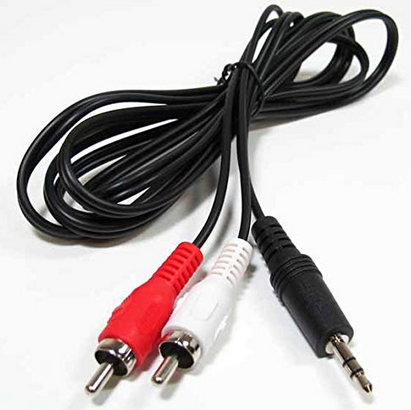 Mobile phones used to have 3.5mm headphone ports. These have largely been replaced/removed. Apple officially removed the 3.5mm headphone jack with the launch of the iPhone 7 and "iPhone 7 Plus" in late 2016. Samsung began removing the 3.5mm jacks in 2019-2020. By 2020, most mobile phones used the USB-C ports only which are digital. You can use a USB-C (active) headphone or use an adapter dongle with a USB-C to 3.5mm female connection for analog headphones. The dongle adapter usually has a DAC built into the cable on the USB-C side to convert digital to analog. CTIA and OMTP are two different 3.5mm headset wiring standards. 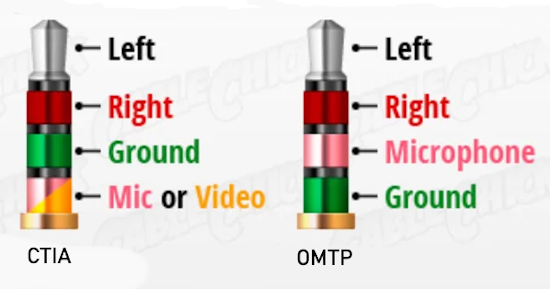 Using the wrong headset causes muted audio or non-functional mics; adapters are required for compatibility. 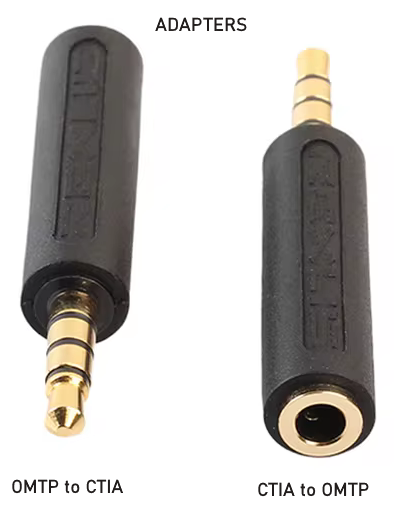 CTIA (Cellular Telephone Industry Association): Currently the dominant, standard for modern devices. The CTIA (Cellular Telecommunications and Internet Association) standard refers primarily to the 3.5mm TRRS connector wiring (Tip-Ring-Ring-Sleeve) used in most modern smartphones, tablets, and laptops. It arranges the 4-pin connector as Left Audio (Tip), Right Audio (Ring 1), Ground (Ring 2), and Microphone (Sleeve). This standard is widely used by Apple, Android, and Sony devices to ensure compatibility for audio and mic input. 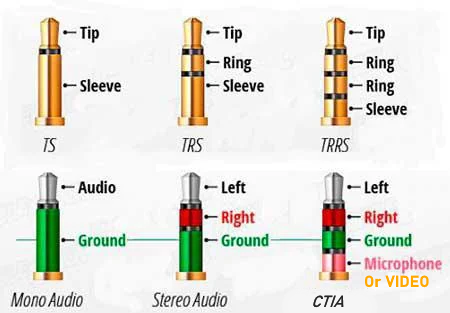 OMTP (Open Mobile Terminal Platform): Older, legacy standard. The OMTP standard is a 3.5mm TRRS (Tip, Ring, Ring, Sleeve) connector wiring configuration where the microphone is on the second ring and ground is on the sleeve. It was primarily used in older devices (e.g., Nokia, early Androids) and is often incompatible with modern CTIA-standard devices, requiring adapters to reverse the ground/mic connections. Micro USB cable connection 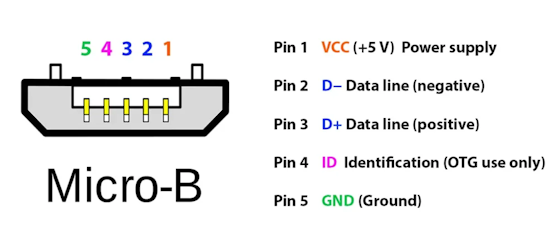 Note: Most Android phones transitioned from Micro USB to USB-C between 2016 and 2018. While high-end flagships like the Samsung Galaxy Note 7 introduced the port in 2016, widespread adoption across mid-range and budget Android devices occurred closer to 2018–2019. By 2020, USB-C was the standard for nearly all new Android devices. Note: Apple iPhones have never used a Micro USB port for charging or data transfer. Apple used a proprietary 30-pin connector (original iPhone to iPhone 4S), followed by the Lightning connector (iPhone 5 to iPhone 14), and transitioned to USB-C with the iPhone 15 and later models. 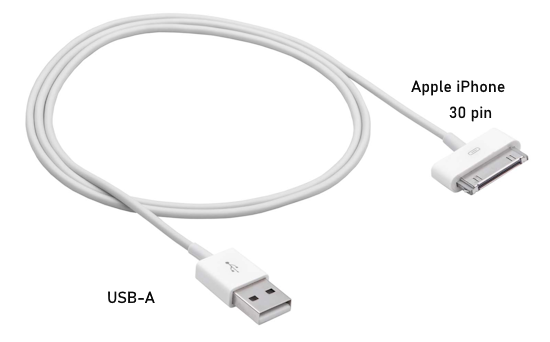 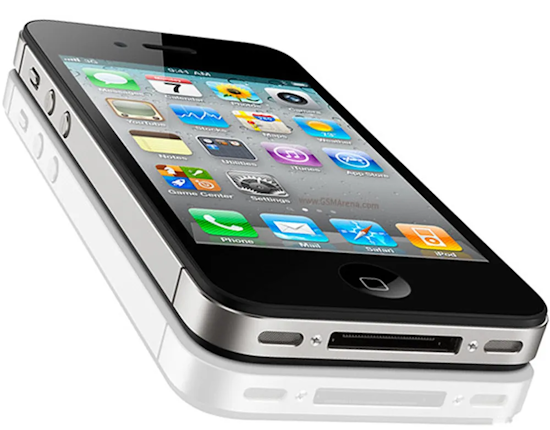 iPhone 4 with 30 pin connection 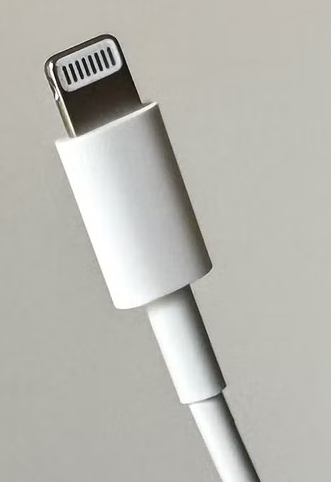 Apple iPhone Lightning connector. Apple's Lightning connector is a proprietary, 8-pin reversible port introduced in 2012 (iPhone 5) and phased out for USB-C with the iPhone 15 series. It supports charging and data transfer for iPhones (up to iPhone 14). 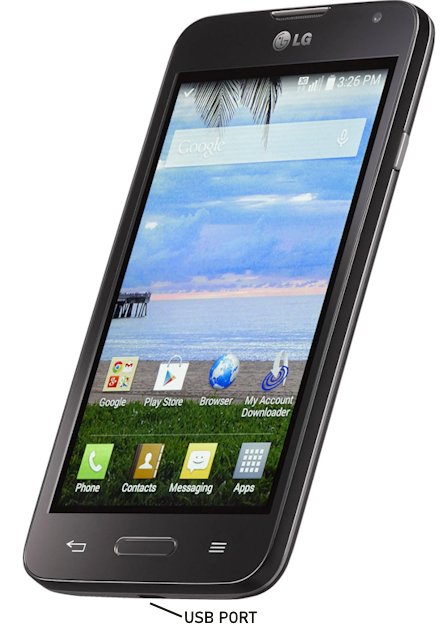  Mobile phone (LG Android) Micro USB port Micro-USB ports are primarily found on older (2015) or budget mobile phones. This cable connection is used for charging the phone battery or for transfer of data. Music can be played over the micro USB cable connection. USB Cable (For Playing Local Files) Connect your Android mobile phone to your PC using a USB cable, micro USB to the phone and the other end USB Type-A on the computer. Phone should be fully charged 100%. On the phone, change the USB setting to File Transfer (or MTP). When you plug in the USB cable, you should be prompted to select the USB transfer option or to charge the phone. On your Windows computer, open File Explorer, locate the phone's music files, and play them directly (Windows Media Player) or copy them to the computer and play them from the computer directly. Look for the name of your phone in Windows Explorer and click on it. Navigate through the storage folders to find the folder with your files (music or video or images). Click on the file you want to play. Your default player should start playing the file you selected. 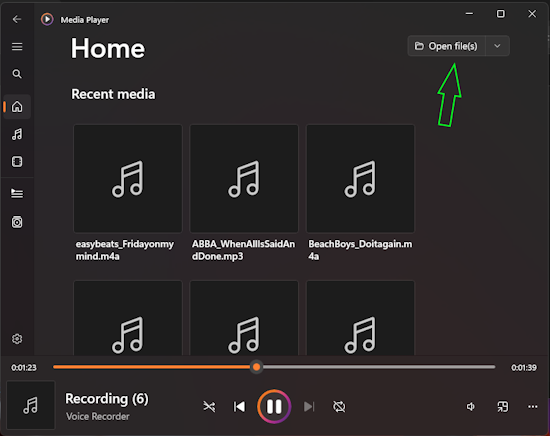 Windows Media Player Home screen In Windows Media Player, go to the HOME screen and click on the "Open file(s)" tab. From here, you can select your phone's files. Adjust the volume on phone and in the player. If errors occur, restart computer or disconnect USB cable and reconnect. Try a different USB port on computer. Wi-Fi wireless While standard Bluetooth is convenient, it compresses audio, making wired connections or Wi-Fi superior. Apple iPhones with Airplay or Android phones with GoogleCast (ChromeCast) can use your home Wi-Fi network to play music to compatible devices. Note: LG, (Android OS) terminated their mobile phone business and support in 2021. LG no longer makes mobile phones and support has ended. As of June 30, 2025, LG shut down its smartphone update servers, meaning no further software upgrades, security patches, or app updates. Miracast, Googlecast, Chromecast, SmartView, Airplay Wi-Fi audio and video casting can be a confusing and ever changing landscape of different manufacturers, technologies and software. Often, using devices from the same manufacturer can give the best results. For example a Samsung phone will work best with a Samsung TV. There are many alternatives to get the results you want. The technology is always progressing. The Basics: Look for the Casting icon on Wi-Fi enabled devices.
Pressing this icon in the media app or device usually starts the process of linking the devices through Wi-Fi. You need a capable home wireless Wi-Fi router to link devices wirelessly. You need the devices to have compatible Wi-Fi capability. Wi-Fi must be enabled (turned ON) in the devices. The devices must be connected to the same Wi-Fi network. The media app running on the phone must have casting capability compatible with the receiving device. Casting must be enabled in the phone media app and the receiving device must enable casting and have a media receiving application. Audio or Video files must be available on the phone to play. "VLC for Android" is one phone media app that can cast audio or video files using Wi-Fi from a mobile phone to a compatible TV for example. If your TV is compatible, you can play songs on the phone and hear them on the TV speakers or on larger external speakers connected to the TV. Video files can be viewed on the large TV screen. Testing done using an LG Rebel 4 (2018) Android (8.1.0) mobile phone linked to an LG 40 in. (2025) TV (AirPlay and Googlecast capable). Apple AirPlay 2 AirPlay 2 is Apple's wireless streaming technology for audio and video, allowing users to stream media from iOS devices or Mac to compatible speakers, TVs, and receivers. Key features include multi-room audio, enhanced buffering to reduce latency, and control over smart TVs and audio devices directly via "Control Center" or Siri. iOS 11.4 was the first iOS version to natively support AirPlay 2. Released on May 29, 2018, this update introduced the multi-room audio streaming, HomePod stereo pairing, and improved buffering directly to iPhones. AirPlay can work over a local network (LAN), through either Wi-Fi or Ethernet, or (since 2017) directly to each other using Wi-Fi Direct, which does not require a wireless local network. AirPlay wireless technology is integrated into speaker docks, A/V receivers, and stereo systems from various companies, including Denon, Marantz, Yamaha, Onkyo, Sony, JBL and others. The older Apple Airport Express model A1392 router (find on E-bay) can be used as a wireless music streamer by connecting the 3.5mm analog audio output on the rear of the Airport Express to your stereo. To setup the Airport Express, download the utility app. Apple iPhone Apps Apple Utility App Connect to your home network wireless router using ethernet if Wi-Fi is not linking to your network, then use Wi-Fi afterwards. You want to "Join Wireless Network". Next enable Airplay. The connection from the Airport Express to the stereo can use a 3.5mm to RCA (white and red) audio cable. • Setup Airport Express If the version of the iOS device (iPhone, iPad etc.) is iOS 11.4 or later, you can play the music of the iOS device on a Airplay2 capable A/V Receiver and other devices that support AirPlay2. 1. Connect the iOS device to the local network where the AV Receiver is connected via Wi-Fi (or Ethernet). 2. Tap the AirPlay icon on the play screen of the music play application on the iOS device, and select the A/V Receiver and AirPlay2-supported devices to play from the displayed devices. • AirPlay2-supported devices are displayed with white circle on the right side. • Multiple AirPlay2-supported devices can be selected. • The volume can be adjusted on individual devices. 3. Play the music file on the iOS device (iPhone). You can also play the music files on a PC with iTunes (Ver. 12.8 or later) Miracast Miracast uses Wi-Fi Direct. This means the two devices create a wireless direct, peer-to-peer connection with each other, completely bypassing your home router. For consumer use, Miracast is largely considered outdated. While it still works as a functional cable-replacement standard, the industry has shifted toward proprietary protocols and app-based casting. In addition, not all Android phones support Miracast. For example, the LG Rebel 4 (LML212VL) does not support native Miracast or wireless screen mirroring out of the box. Because it is a budget-tier smartphone, LG omitted standard wireless projection/cast features from the device's software. Googlecast Almost all modern Android phones and tablets support Google Cast natively. This includes brands like Google, Samsung, Motorola, and OnePlus. Google Pixel Series: All generations (including the Pixel 9 and Pixel 10 lineups) Samsung Galaxy: All recent devices via the Smart View or Quick Share feature Motorola, OnePlus, and Asus: All modern Android smartphones How to Use Google Cast Ensure your phone and your Cast-enabled TV (or streaming device like a Chromecast) are connected to the same Wi-Fi network. Open a Cast-compatible app (e.g., YouTube, Netflix, Spotify). Tap the Cast icon (a rectangle with Wi-Fi waves in the corner). Select your TV or speaker from the list. Mobile Phone Wired Connection to Stereo How Can I Play Music From My Phone Through My Home Stereo? 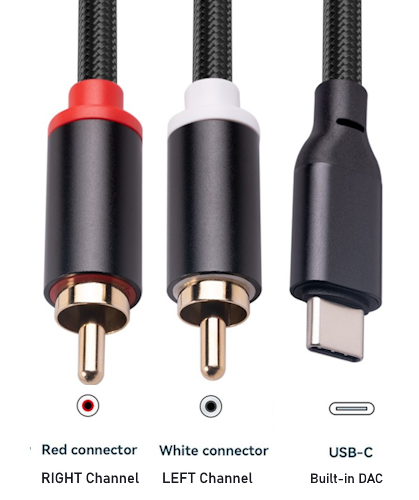 Adapter cable - USB-C to RCA stereo You can use an adapter cable with RCA or 3.5mm Aux connectors to connect phone's USB-C port to stereo analog inputs. 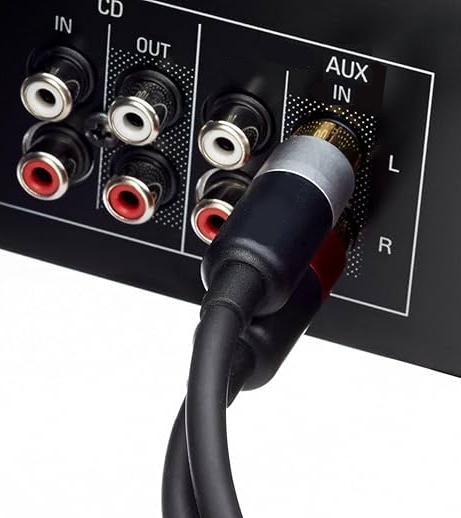 Stereo Aux analog inputs 1. Locate the AUX port or a set of RCA inputs such as Aux or CD input on your stereo: This port is usually on the back of the stereo and often labeled "AUX," or "Audio In". 2. Plug in the aux cable: Insert one end of the cable into your phone's headphone jack (3.5mm analog if available), USB-C port (digital) or external adapter and the other end into the stereo's AUX input port. 3. Select the correct input on your stereo: Use the stereo's input or source button to switch to the correct mode. 4. Play your music: Open your favorite music app on your phone and press play. The sound should now stream through your home stereo speakers. USB connections USB connections have become a popular way to stream music from your phone to your home stereo. Unlike analog connections such as aux cables, USB transfers digital audio signals directly. This means your stereo's built-in digital-to-analog converter (DAC) handles the sound processing instead of your phone's DAC or your adapter cable's built-in DAC. Since many stereos have higher-quality DACs, this often results in clearer, more detailed audio. USB also provides a stable, interference-free connection. Unlike Bluetooth, USB doesn't rely on wireless signals that can drop or degrade. It's especially useful when you want consistent, high-fidelity sound without worrying about wireless signal interruptions. Most modern smartphones support USB-C audio output. Your stereo or external DAC must have a USB input designed for audio, usually labeled "USB" or “USB Audio” or similar, to use this method effectively. How to Play Music Using a USB Connection 1. Check your stereo for a USB audio port: Look for a USB port on the front or back of your stereo. 2. Get the correct USB cable: Use a cable compatible with your phone's charging port on one end (USB-C) and a USB connector on the other end to plug into the stereo. 3. Connect your phone to the stereo: Plug the cable into both devices. Your phone might prompt you to allow USB audio output or switch to a specific mode. 4. Select the USB input on your stereo: Use the stereo's input or source button to switch to the USB mode. 5. Play your music: Open your music app and start playback. The stereo should now output the sound from your phone. Some phones may require enabling USB audio output in settings or supporting USB Audio Class 2.0 for higher-resolution sound. Check your phone's specifications and stereo manual for compatibility details. Use a high-quality correct and compatible USB cable and ensure your phone supports USB audio output to get the best sound quality when streaming music via USB to your home stereo. High quality external DAC: By connecting the phone's USB-C port to an external DAC's USB input, you can get the benefits of a higher quality DAC. Then connect the DAC's analog audio output to the stereo analog input. The Schiit Modi 3 is a versatile USB/SPDIF Digital-to-Analog Converter (DAC) that features three primary digital inputs—USB, Toslink (Optical), and Coaxial and one set of RCA analog outputs which connect to your stereo amp or receiver inputs. The Schiit Modi 3 (and 3+) features a Micro-USB input for data, often referred to as a "USB micro" port. Schiit Modi 5 desktop DAC: USB-C input Phone Connectivity: Directly compatible with modern USB-C phones (Android or iOS). 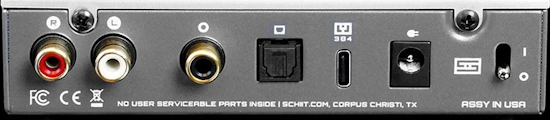 The Schiit Modi 5 DAC works with an iPhone, but it requires specific adapters for a wired connection. For older iPhones with a Lightning port, you need an Apple Lightning to USB 3 Camera Adapter to connect to the DAC. For iPhones with a USB-C port (iPhone 15 and later), a standard USB-C (digital data) to USB-C cable will generally work. Step-by-Step Connection Guide: Phone to DAC to stereo Audio Output (Android to Modi): Connect your Android phone's USB-C port to the USB input on the back of the Modi 5 using a USB-C to USB-C cable (or USB-C to Micro USB, depending on the Modi model). Analog Output (Modi to Amp): Connect the RCA jacks labeled "R" and "L" on the Modi to your amplifier, preamplifier, or powered speakers using standard RCA cables. Powering the Modi (Crucial for Android): Option A (Ideal): Use a USB-C hub that supports PD (Power Delivery) to allow the phone to charge while driving the DAC. Option B (Recommended for Stability): Use the secondary USB input on the Modi (if available) or a "y-splitter" cable to connect a 5V power source (like a phone wall charger) to the Modi. This ensures the phone battery doesn't drain quickly and provides consistent power to the DAC. Playback: Play music on your phone. Most modern Android devices will automatically detect the DAC and route audio through it. Note: Android Audio Output: Some Android devices may require you to enable "OTG storage" or "USB debugging" in settings, or use an app like USB Audio Player Pro for maximum compatibility, though most modern phones are plug-and-play. Power Issues: If the Modi does not turn on (light stays off), your phone is not providing enough power, and you must use an external 5V power supply via the second USB port. Volume Control: The Modi 5 has a fixed output. Use your amplifier or music app to control the volume. Connect Mobile Phone to Car Stereo 5 Ways to Connect a Mobile Phone to a Car Stereo 1.) 3.5mm Cable 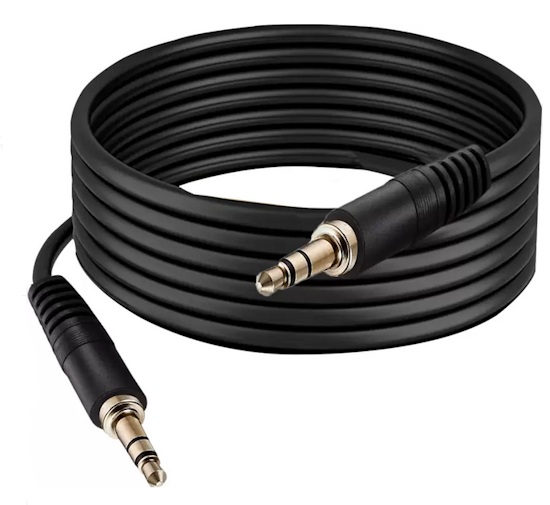 One way to connect a phone to a car stereo is through a 3.5mm audio cable. At one end, the cable will plug into the 3.5mm headphone jack of your mobile device, and at the other end it will plug into the AUX (auxiliary) line input on your car’s audio system if it has this port. Vehicles from 2005 to 2012 will usually have this port. It may be in a location which is not readily visible such as under or inside a latch. 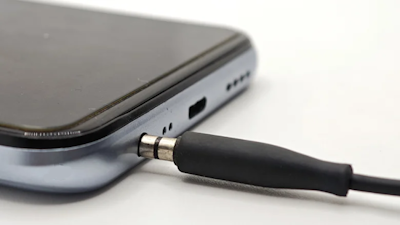 Automakers have largely phased out 3.5mm jacks in favor of USB and wireless Bluetooth streaming. Even if a car did not come with an AUX jack from the factory, many owners added them through aftermarket head units or by purchasing adapters. If your phone has a USB-C jack, no headphone jack, use a USB-C to 3.5mm adapter cable with a DAC built-in to convert digital to analog. 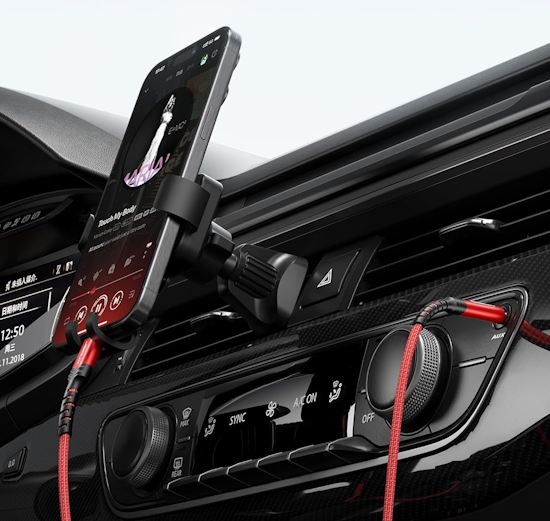 2.) USB Cable 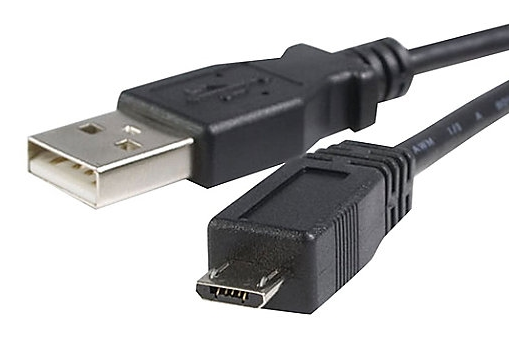 A second way to connect to a car stereo is using the USB port on your phone with a USB cable. Vehicles from 2006 to 2020 will usually have USB Type A ports. After market head units often had both Aux and USB ports. USB Type C ports replaced the USB Type A ports from 2020 to 2026. Use a USB cable compatible with your phone. For an older Android phone, micro USB to USB-A cable for example. 3.) Bluetooth wireless audio connection - Newer vehicles have touch screen multi-media receivers with Bluetooth. For Bluetooth wireless to work, you must "pair" your phone to the car stereo receiver. Bluetooth Pairing Steps 1. Turn on Bluetooth in your phone’s "Settings" > "Bluetooth". 2. On the car stereo (multi-media) touchscreen, select the "Menu" or go to "Setup" or "Settings" (Gear icon) and select "Bluetooth Devices" or "Add Device". Select "Search". 3.Select "Car Stereo name" on your phone's list of available Bluetooth devices. 4. Verify the matching PIN number on both the phone and car stereo screen, then select "Pair" or "Okay". 5. The car stereo system may then ask to enable "Apple CarPlay" or "Android Auto" automatically. Note: Bluetooth devices cannot be paired while the vehicle is in motion. Put car transmission in "Park". If your vehicle does not have Bluetooth, you can get a Bluetooth adapter receiver which plugs into the car stereo. 4.) FM transmitter - If your vehicle does not have Bluetooth, you can use a Bluetooth/FM Transmitter to play through your car stereo FM radio. This device plugs into the 12 volt lighter socket which almost all vehicles have and connects to your phone with Bluetooth. To setup, plug the FM transmittter into the 12V socket. Select an FM radio frequency which is not in use in your area on the FM transmitter. Set your car stereo FM frequency to that same frequency you set on the FM transmitter. Now pair your phone to the FM transmitter using wireless Bluetooth. Settings > Bluetooth > select the FM transmitter name. Pair and connect. Now play music on the phone and listen on the FM stereo radio car speakers. 5.) Audio Cassette Adapter - For older vehicles with a built-in tape cassette player, AM/FM radio. A cassette adapter brings modern audio to older car stereos by inserting a "fake tape cassette" with a 3.5mm cable or Bluetooth into the tape deck, allowing phone, CD player or MP3 player music playback. A magnetic head inside the cassette transmits audio directly to the stereo's tape mechanism. These devices are very inexpensive and require no installation. Connect 3.5mm cable end to device, insert cassette into tape port on car stereo, select TAPE mode on car stereo, play and adjust volume. 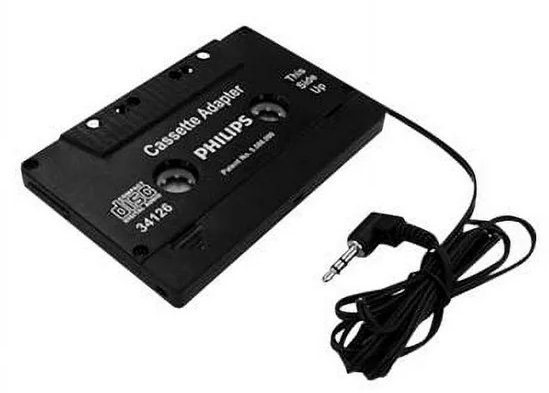 Connecting a phone to a car stereo is best achieved via Bluetooth for wireless convenience, or USB cable for Android Auto or Apple CarPlay, or an AUX cable (3.5mm) for older vehicles. Simply activate pairing mode on the car stereo and phone for Bluetooth wireless, or for a wired connection, plug in the USB cable or AUX audio cable. Methods to Connect Phone to Car Stereo: Bluetooth (Wireless): On your car stereo, enable pairing mode (often labeled "BT," "Pair," or via "Settings" > "Bluetooth"). On your phone, go to Settings > Bluetooth and select the car's name. This allows music streaming and, often, hands-free calling. USB Cable (Android Auto/Apple CarPlay): Plug your phone directly into the car’s USB port using your USB charging cable. This often triggers Android Auto or Apple CarPlay for a fully integrated interface. Aux Cable (3.5mm): If your car has an AUX input port, plug a 3.5mm cable into your phone’s headphone jack (or a USB-C or Lightning adapter) and the other end into the stereo. Cassette Adapter: For very old vehicles, a cassette adapter device can be plugged into the phone (3.5mm) and then inserted into the car's audio cassette player like a normal audio cassette. Headphone Jack Alternative: If your phone lacks a headphone jack, use a USB-C to 3.5mm or Lightning to 3.5mm dongle cable. Input Selection: Ensure your stereo is set to the correct input source (AUX, USB, or FM). Flash Drives:  Recent car stereos with a USB input port can accept flash drives with MP3 audio files. A 32GB flash drive can hold about 4,000 to 7,000 songs. Copy mp3 files from your computer to your flash drive and listen on the go. You can rip CDs to your computer using Windows Media Player and then copy to the flash drive. I have a new 2025 smart TV but an old 1990 A/V Receiver. How do I play music wirelessly from mobile phone to A/V Receiver? There are several ways. 1. You could add a Bluetooth receiver device to your older A/V Receiver and play music wirelessly from phone to AVR via Bluetooth. 2. You could play music from phone to smart TV wirelessly via Bluetooth and connect the TV optical output to the A/V Receiver optical input. 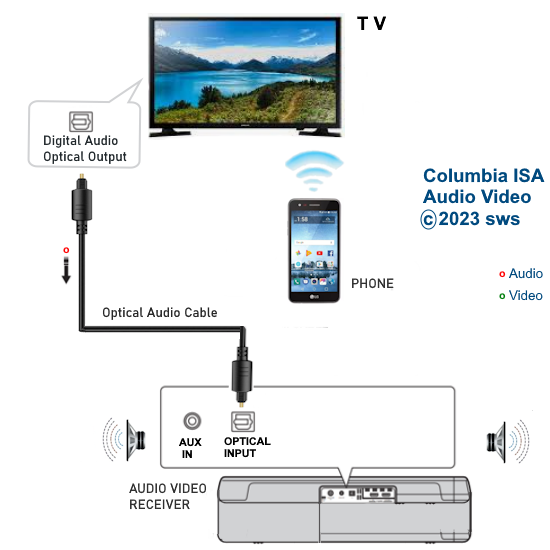 Connect optical audio cable from TV optical output to AVR optical input. Enable Bluetooth on phone. Pair and connect phone to smart TV. Select Optical Sound Out on TV instead of TV speakers. Select the optical source input on the AVR. Play music on the phone with a media app. The smart TV should run an app for Bluetooth music, if not run the correct app on the TV. Now hear sound from the AVR speakers or headphones from the phone through the TV. Sound output format is stereo (PCM). • 7 Ways to watch TV in a RV camper • Connect PC to Stereo Columbia ISA Audio Video Empowering consumers through information columbiaisa@yahoo.com SWS |

