
|
|
|
Samsung TV How to Setup Wi-Fi Network Setup Network Wi-Fi for Samsung TV How to setup Wi-Fi on Samsung TV 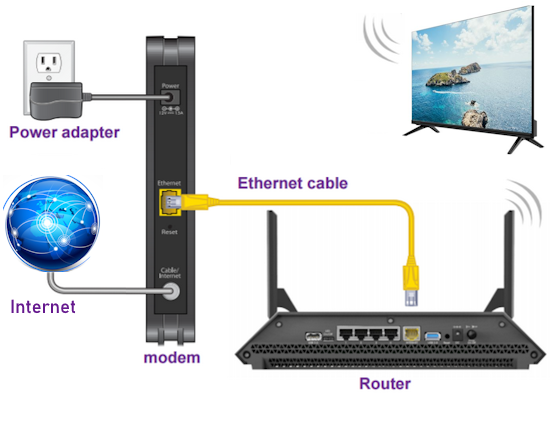 Internet TV diagram - Wi-Fi Connection Built-in wireless radios are a common feature on almost all modern flat screen TV models. This wireless capability allows communication to internet based content. Samsung TV generally did not have wi-fi capability before 2010 so if your Samsung TV is older, then you would have to use a external device capable of accessing internet or get a newer TV. The Samsung TV operating software will change over time, so the menus will look different but the idea is to go to the home screen or menu screen and select SETTINGS. Next, find the NETWORK selections. You may find this under GENERAL or CONNETIONS. Search for and select NETWORK. Select Network Settings or Network Type. Next select Wireless or Wi-Fi. All of the local Wi-Fi signals should show up in a list, including your Wi-Fi which should have been enabled on your Wi-Fi router. Choose your Network name. Next, enter your Wi-Fi password. If all goes well, you should connect to internet. Now you can access internet content. SAMSUNG TV Remote Control Locate the Samsung TV remote control. Be sure there are good batteries installed or the remote is fully charged. Use the arrow buttons on the remote to navigate up/down/left/right and the center button to select your choices.  Samsung TV remote controls have changed over time. Newer remotes may look like the following: 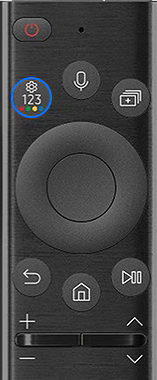 The navigation wheel has no arrows but functions the same, center button selects your choices. The HOME button looks like a house. You need your network name (SSID) and wireless password. If you were not the person to setup your router, then you should locate this information either from someone who setup the router or from looking on the router itself for the default information. If you have the router logon information (admin username and logon password) you can find the network password and SSID by using a browser on your computer and going to the IP address of the router such as 192.168.1.1 and looking for the wireless section. Connect the computer directly to the router using an Ethernet cable. 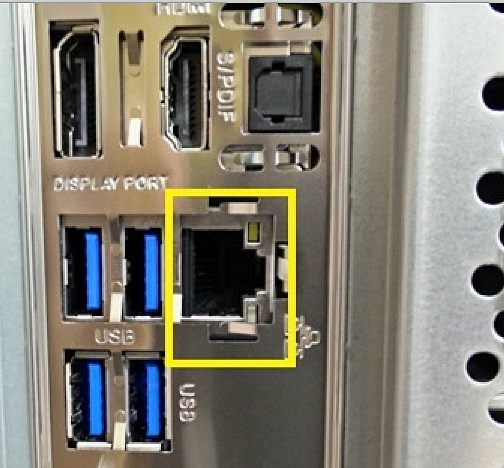 Computer Rear Panel - Ethernet (LAN) port 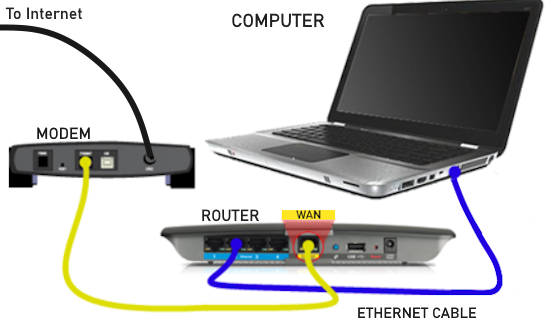 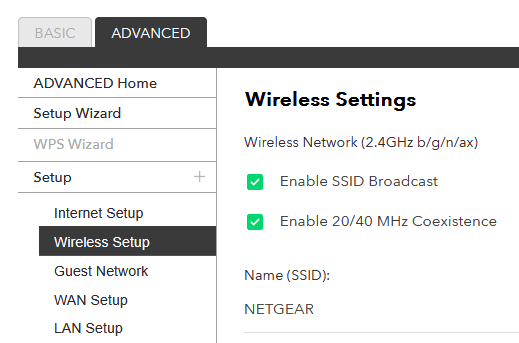 Connect Samsung TV to Internet - Step by Step Power ON the Samsung TV> SETTINGS> All Settings> Connection> Network> Open Network Settings> Wireless> Choose Network Name> Enter Password> Connected! 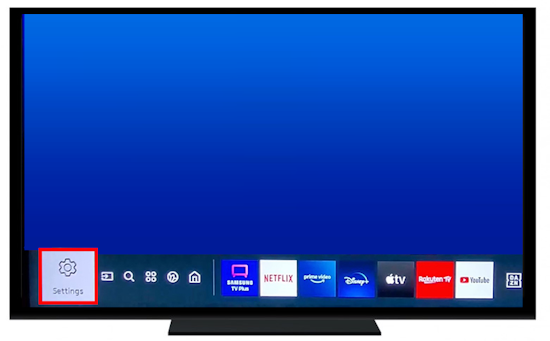 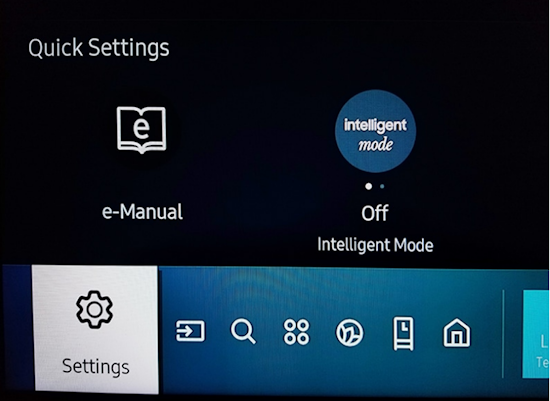   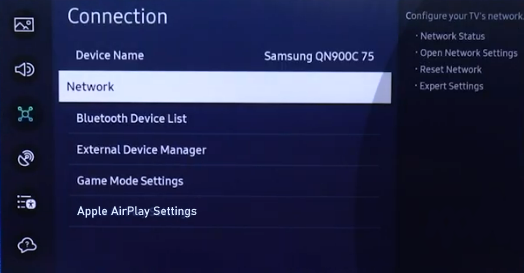 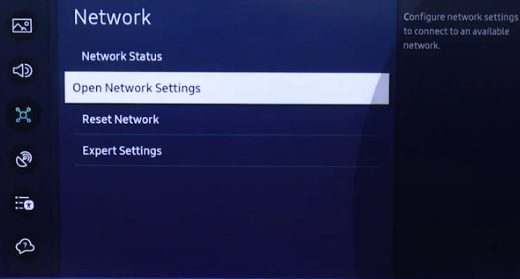 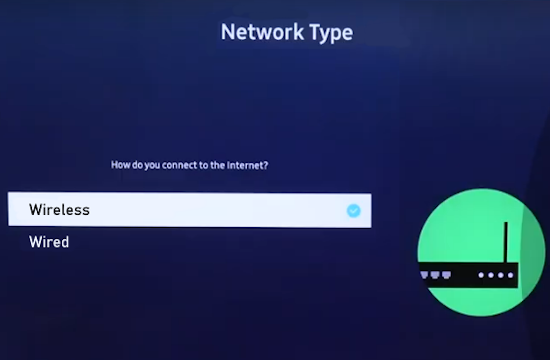 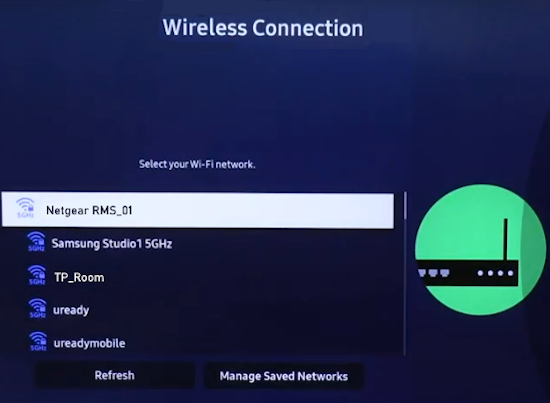 Select your Wi-Fi network name 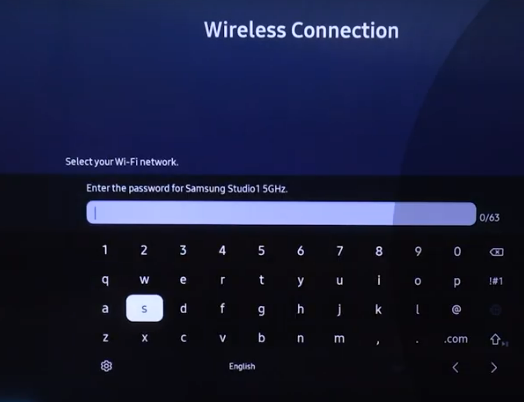 Enter your Wi-Fi Password using the keypad. Move to each letter or number, press OK on remote. 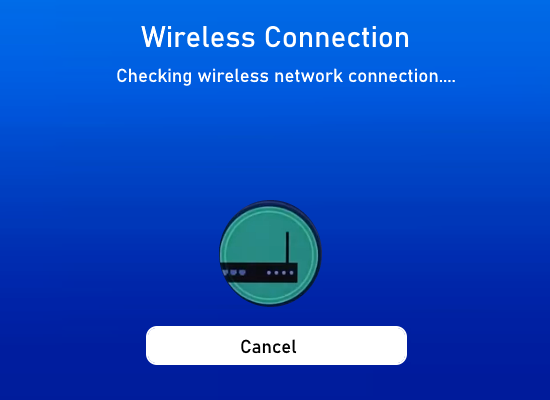  • YouTube video on Samsung TV network connect • Samsung TV Wi-Fi Troubleshooting Connect Samsung TV to Internet - Wired You can also connect the TV to internet with a wired connection which is faster and more secure than Wi-Fi. 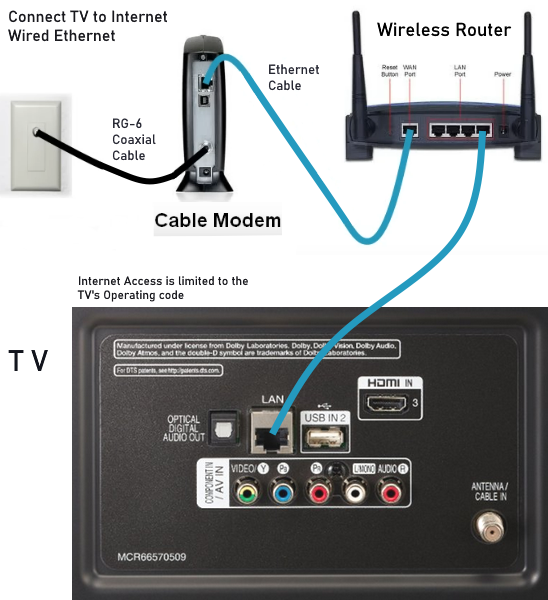 Connect an Ethernet cable to the TV LAN port (RJ-45) 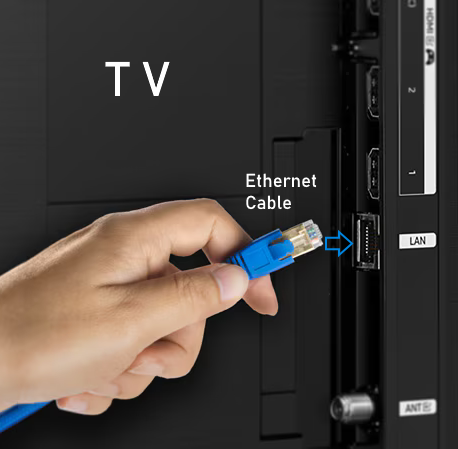 Connect the other end into one of the router LAN ports 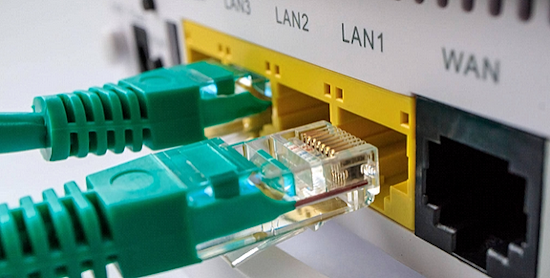 To setup, select WIRED instead of Wireless in the TV Network settings. See also: • PC stereo hookup • How to scan broadcast channels on Samsung TV • Hookup Diagrams • TV input select • Timer Record Radio Shows on a VCR • Camcorder hookup to TV, DVD • Audio Video Connections • Video Cables Connections • See over 100 Hookup Diagrams • HDTV Cables and connections Columbia ISA Audio Video Empowering consumers through information columbiaisa@yahoo.com SWS |