
|
|
|
• Surround Sound Speakers • Streaming TV Surround Sound • How to select Input Sources on TV • Streaming TV and devices • Surround Sound How to get internet on Old TV Turn Old TV into Smart TV How to connect your TV to internet How to turn an old TV into a Smart TV You must have home internet service from a provider with a modem/router and wi-fi. Contact your local ISP such as Cox, Comcast, Spectrum, AT&T etc. and expect to pay a monthly charge for internet access. You also need a streaming device such as a Amazon Fire TV stick or ROKU TV stick. Options to get internet on TV 1. Laptop/Desktop computer with a connection to TV. 2. Smart TV with built-in ethernet, wi-fi, software operating system and apps. 3. TV stick or streaming device from ROKU, Amazon, Apple, and an older TV. For an old TV, you need a HDMI to RCA adapter to take the HDMI from the TV stick and turn it into RCA for the TV RCA inputs or in the case of using a VCR or RF modulator, channel 3 or 4. Turn an older TV into a Smart TV with an adapter. Plug the TV stick or streaming device into the adapter HDMI port. Plug in power to the adapter. Plug in RCA cables to TV RCA inputs. Select on the TV the proper Video input or channel 3 in the case of VCR to RF only TV. Even older TV sets with twin lead antenna hookups can use a 75 ohm to 300 ohm balun to connect to TV. In the diagram a VCR is used for a TV with only an RF input but if your TV has RCA inputs (yellow, white, red) you do not need a VCR. Just connect the RCA cables directly to the TV RCA inputs. You could also use an RF modulator in place of a VCR. In this case, tune the TV to channel 3 or 4. 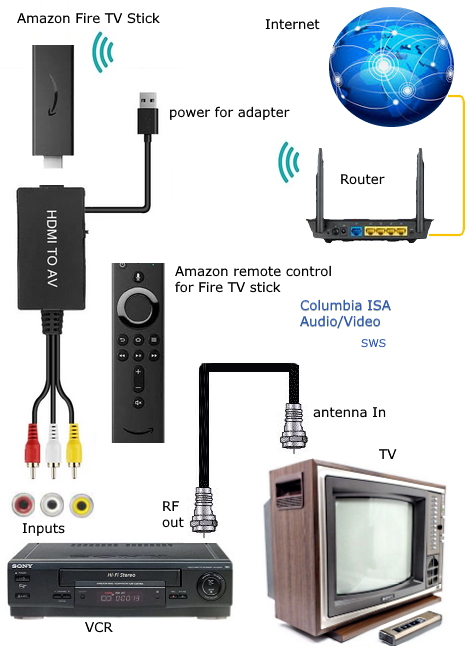 The streaming device (TV stick) will need to be setup. This requires setting up your internet connection which means you will need to know the name of your home network (SSID) and the home network password, either the default password which can be on the router label, or the password which was changed by the person who setup the router. Step by step to Setup Amazon TV Stick
See also: • Audio convert HDTV sound • Turntable to PC - Convert vinyl LPs to digital music files on PC • PC to stereo hookup • See over 100 Hookup Diagrams • Timer Record Radio Shows on a VCR • Camcorder hookup to TV, DVD • Audio Video Connections • Video Cables Connections • Hookup Diagrams Columbia ISA Audio Video Empowering consumers through information columbiaisa@yahoo.com |