PC Hookup to Phone
How to connect PC to phone to transfer files with USB cable
Copy files from computer to mobile phone
Using a USB cable, you can connect computer to mobile phone to copy files.
Transfer files between computer and Phone
• PC
to stereo hookup
•
Tape Cassette to PC hookup
There are many ways to connect PC to phone including Bluetooth wireless, several
apps and others but if you just want a simple
local connection without any extra software or gear, using a USB cable that typically came with your phone for charging, will allow file transfers
from phone to PC or PC to phone.
Step by Step: Windows 10/11 PC
1. Power ON computer, sign in, go into "File Explorer".
2. Power ON mobile phone, sign in.
3. Connect USB cable from phone to computer. The computer has a USB Type A port and the phone has a USB Type C or a USB Micro port.
A standard USB cable can be used to connect. The USB Type A only has two power pins and two data pins and that is all you need.
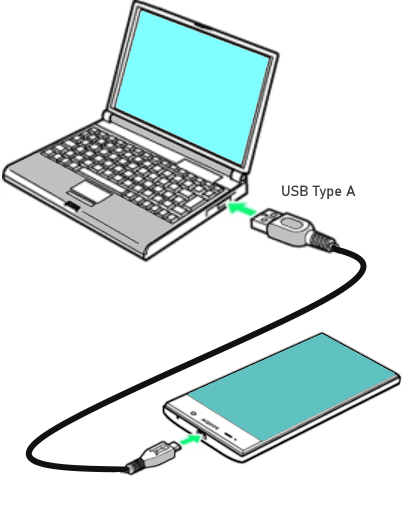
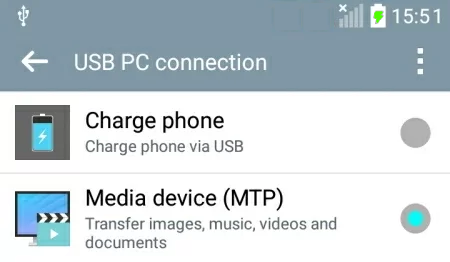
4. When the USB cable is connected, select on the phone, the MTP (media transfer protocol) and not the Charging option for USB. Some
older phones may require a 100% charge before the USB MTP can be selected.
Steps to Select MTP Mode on phone:
Unlock your phone if locked.
Connect your phone to the computer using the correct USB cable.
Look at the top of the phone's screen to find a small USB symbol after the USB cable is connected.

USB symbol
Swipe down from the top of the phone's screen to view the notification panel.
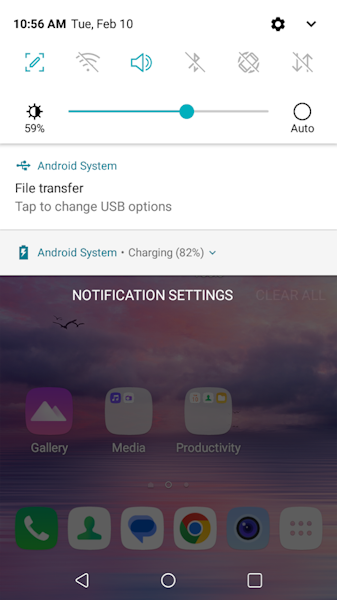
Tap to select/change USB options
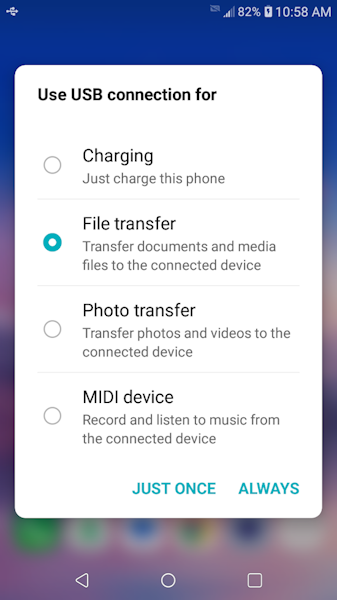
Select the USB Mode:
Tap the notification labeled "USB for file transfer".
Choose Transfer Option: Select "Transfer files" or "MTP" from the options.
Depending on your version of Android, your screen may look slightly different.
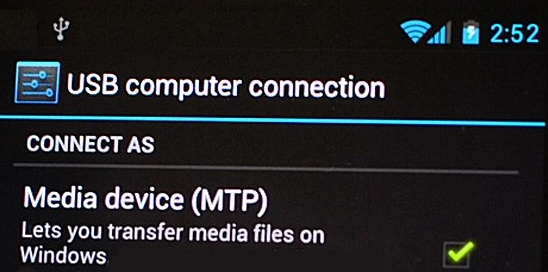
Google Pixel phones
After connecting the USB cable, but no files appear in "File Explorer" on computer. Swipe down to see notify panel. Go down to "Android System".
See "Charging via USB" Tap for more options.

On the next screen, select File transfer / Android
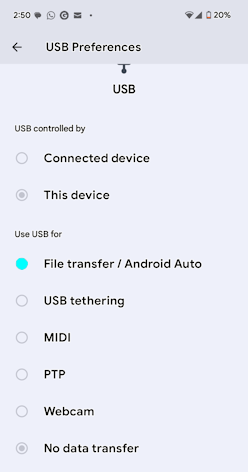
The phone's folders and files should now show up in File Explorer.
5. When the USB connection is completed, in "File Explorer" on the computer, look for the name of your phone under "This PC" and click on your phone name.
This name may show as the model of the phone.
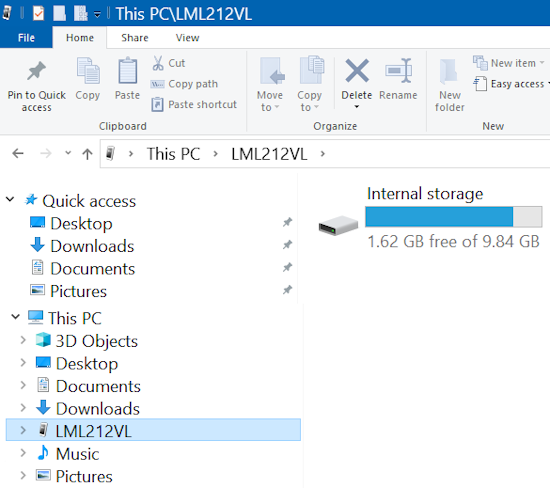
6. Next, on the right, click on "Internal Storage". This is your phone's files. Click on any folder to see the files stored on your phone.
7. To copy a file from the computer to the phone, select the folder on the computer, then select the file by right clicking on it and then go to
"Send To" and then select your phone's name and click on it. You may see a "COPY" window briefly appear if the file is large or if the file is
small, you may never see a "Copy" window.

Your file should now be on your phone. A music file can be played on the phone with the default media app.
Troubleshooting:
If the USB connection will not work, try using a different USB port on the computer. Also, try using a different USB cable as some are for
charging only.
See also:
• How
to hookup stereo
• PC
to Stereo hookup - how to play computer thru sound system
• Audio
cassette to computer hookup - how to record audio cassettes to PC
• PC
stereo hookup
• How
to hook up a Plasma or LCD HDTV
• How
to hook up a Cable TV box
• Cable
TV - Cable Box Setup
• How
to Install a HD Cable Box
• Surround
Sound over HDMI
• Surround
Sound - How to Hookup
• HDTV
Antennas and Reviews
• See
over 100 hookup diagrams
• Bluray
Players, internet-enabled, Netflix movie streaming
• Cable
Types, audio/video for TV, explanation
• Hookup
diagrams, TV, VCR, DVD, Digital cable box
• DVD
Players reviews and Guide
• VHS
to DVD copy VCR tape to DVD disc
• ROKU
digital video player Setup Guide
• See
over 100 Hookup Diagrams
• TV
input select
• Timer
Record Radio Shows on a VCR
• Camcorder
hookup to TV, DVD
• Audio
Video Connections
• Hookup
Diagrams
Columbia ISA Audio Video
Empowering consumers through information
columbiaisa@yahoo.com
|
| |