|
DVD to Laptop
Play DVD on laptop without an optical disc drive
How to connect dvd player to laptop with USB
No drive on laptop? No problem. To play a DVD on a modern laptop without a DVD drive, you need an external DVD drive which connects to the laptop's
USB port or you can use a standard DVD player for music CDs or DVD movies, like those that connect directly to a TV, and a HDMI to USB capture card.
External DVD drives are small, portable devices that allow laptops without built-in optical drives to read and write CDs and DVDs.
As laptops become thinner and lighter, many manufacturers have opted to exclude optical drives,
making external DVD drives an essential accessory for users who want to use physical media.
Many external DVD drives offer plug-and-play functionality,
allowing users to simply connect the device via USB cable and start using it immediately without installing additional software.
You can view/play video files such as .mp4 video files.
Most external DVD drives are powered through the USB connection and do not require separate power adapters.
External DVD drives can play commercial DVD movies although you will need software such as the free VLC media player to view them.
Windows 11 does not include a built-in, native app to play DVD movies, as the pre-installed "Media Player" or "Legacy Media Player" lack the
necessary MPEG-2 codecs. To play DVD movies, users must download third-party software, such as the free and open-source VLC Media Player.
• 5 Ways to hookup a DVD Player
• Streaming TV and devices
• How to get Surround Sound from streaming TV
• How to play CD on TV
• How to add wireless Wi-Fi to a desktop PC
• Cable TV Digital Terminal Adapter Box
HELP!
How do I connect my DVD Player to my Laptop
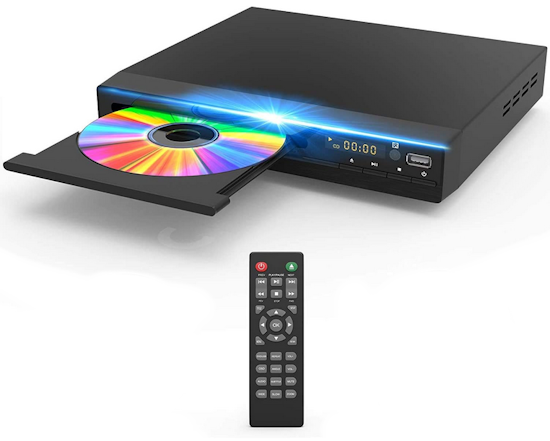
How to connect DVD player to laptop
How to play a DVD on a laptop.
Many older desktop and laptop computers had built-in CD/DVD drives.
Modern laptops do not have a CD/DVD drive.
Option 1 - You could get an external optical disc drive and connect to laptop. These small portable CD/DVD optical disc drives connect
to laptop with USB-A or USB-C cable. Then run on the laptop, a program such as VLC which will play and control the optical disc, including video
and audio.
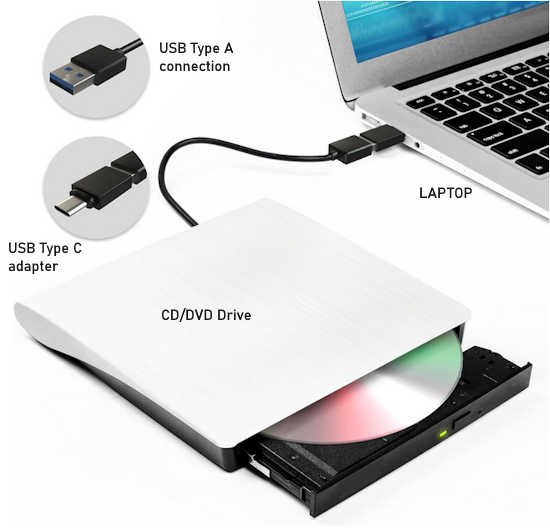
External CD/DVD Drive connect to laptop
Watch DVD movies on TV from Laptop
By connecting the laptop to a TV using HDMI cable, you can view the DVD movie on the big screen.
Connect an HDMI cable from laptop's HDMI output port
to TV HDMI input port. Select on the TV, the HDMI input you connected to such as HDMI 1.
Problems:
Volume control on TV not working for laptop external dvd drive
To fix TV volume control issues with a laptop-connected external DVD drive via HDMI,
ensure the laptop's audio output is set to the TV/HDMI, not the laptop speakers. If you hear the audio from the DVD on the laptop's speakers
then you need to direct the audio output to the TV instead so that the TV volume control will work and therefore the sound will be much richer.
With Windows 11 this setup may just work by default, however if it does not, then go to the speaker icon (lower right) and select "sound settings".
Select the TV for sound output instead of the laptop speakers.
Enable HDMI-CEC (e.g., Samsung Anynet+ or LG SimpLink) on the TV for remote control integration.
Check/Update audio drivers and check cable connections.
Configure Laptop Audio Output (Windows):
Right-click the speaker icon in the taskbar, select "Sound Settings" or "Open Sound settings,"
and set the output device to the TV (often named by brand such as LG or Samsung or listed as "HDMI") rather than "Speakers".
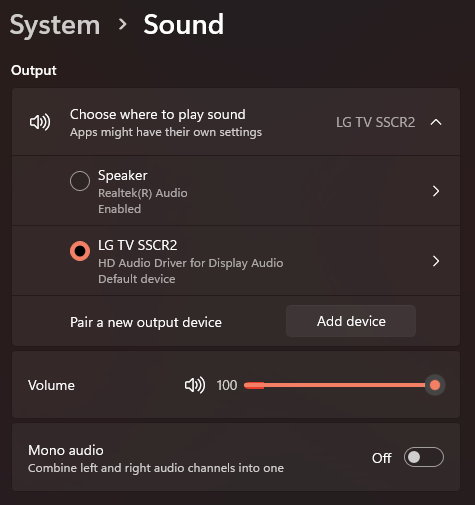
Windows 11 - System > Sound > Select TV to play sound
Enable HDMI-CEC on TV: Navigate to your TV's settings menu (often under General, System, or Input) and look for HDMI-CEC,
Anynet+ (Samsung), BRAVIA Sync (Sony), or Simplink (LG). Enabling this allows the TV remote to send volume commands to the connected device.
Adjust DVD Player Software Volume: Ensure the volume within the DVD playback software (like VLC or Windows Media Player) on your laptop is set to maximum.
Troubleshoot HDMI Connection: Unplug and re-plug the HDMI cable, or try a different port/cable.
Update Audio Drivers: In Windows, open Device Manager, expand "Sound, video and game controllers," right-click your audio device, and select "Update driver".
Only do this as a last resort.
Check Input Settings: Verify the TV input (e.g., HDMI 1) is set correctly, and if using older analog, ensure red/white cables are in the "Audio IN" ports.
If the above steps fail, you may need to use the laptop's own volume control directly, or use an external speaker system connected directly to the laptop's audio output.
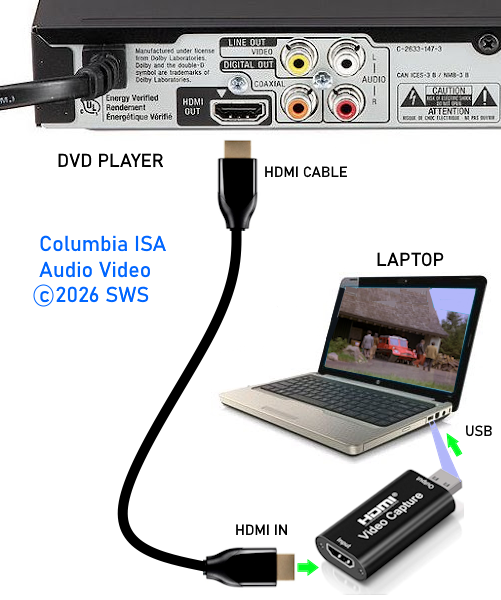
Option 2 - You could use your existing standard DVD player and a capture device and capture software to watch DVDs on your laptop.
Use a DVD player and video capture device
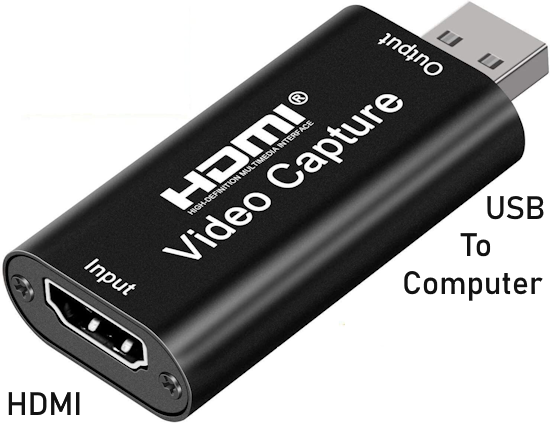
Step by step:
1. Connect HDMI cable to DVD player's HDMI output port.
2. Connect the other end of HDMI cable to the HDMI to USB capture device.
3. Connect the USB end
of the capture device to the laptop's USB port.
Download and run the free VLC Media Player software for your computer
How to install VLC
Capture software runs on laptop.
Download the free VLC software and install on the laptop.
Go to the VLC website
• VLC www.videolan.org
• VLC www.videolan.org download Windows
Run the .exe file downloaded to install VLC.
Look in your downloads folder
and find "vlc-3.0.23-win32.exe" for example.
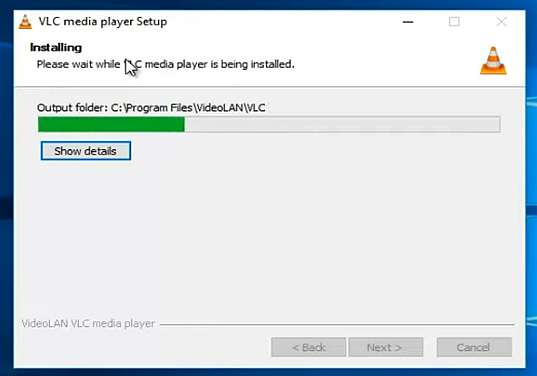
When the install is finished, open VLC.

Optional Windows 10/11: If you want to be sure VLC plays your DVD by default, then go to (Windows icon) right click
and select "Settings" > "Apps" > "Default apps" and then scroll
down to "Video player" and choose VLC as the default player. This allows VLC to start playing the DVD movie automatically after
inserting the disc into the drive.
VLC has many options. Explore them to find which will work best for your media.
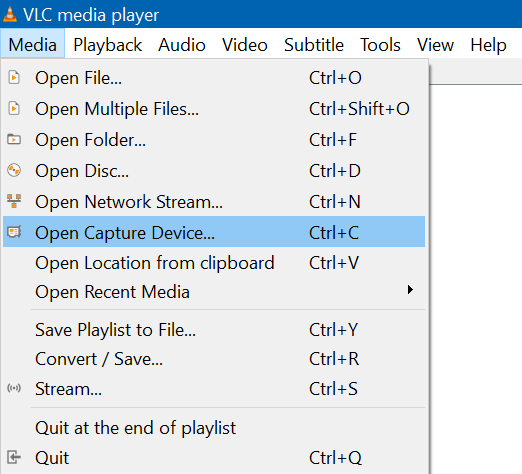
Example - open media
Go to > Media > Open Capture Device
Click on the "Capture Device" tab and select "DirectShow" for the capture mode.
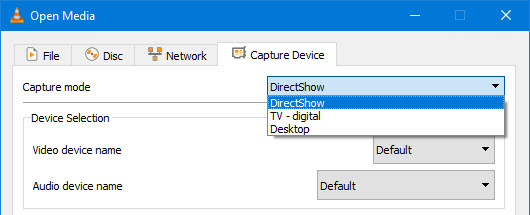
Next select "USB Video" for the video device name.
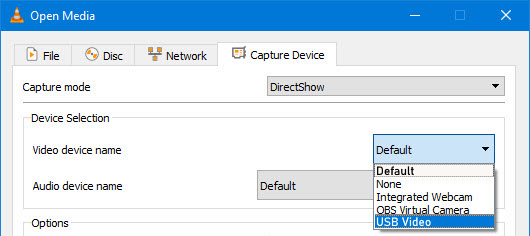
Play the DVD on the DVD player. You should see the video and hear the sound on the laptop.
You can select various options in VLC such as viewing in full screen mode.
Select "fullscreen" under the Video tab.
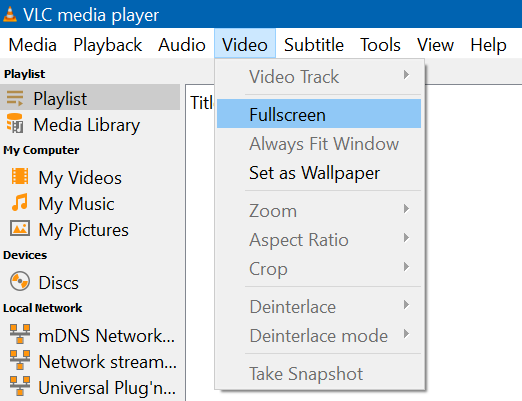
Wireless HDMI connection
How to connect wirelessly
Wireless HDMI works by transmitting audio and video signals from a source device to a display wirelessly, eliminating the need for physical HDMI cables.
This is achieved using a transmitter connected to the source device and a receiver connected to the display,
both of which are powered and communicate via radio frequencies.
The transmitter encodes the HDMI signal into a wireless format, which is then received and decoded by the receiver for display.
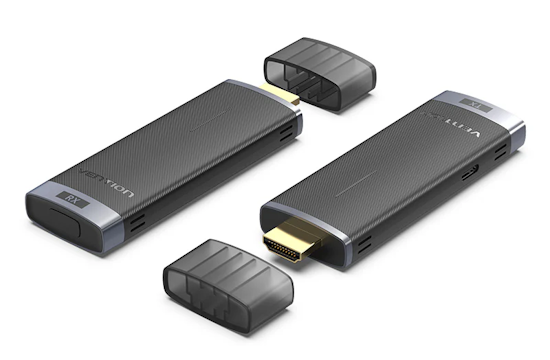
The wireless HDMI transmitter plugs into the source device's HDMI output and the receiver plugs into the display's HDMI
input port. The transmitter and the receiver both require power. There is a USB Type C port for power and a USB Type C to
USB Type A cable which can be plugged into a wall adapter.
Distance is usually around 100 to 300 ft. maximum and video resolution is 1080p or 4K. Some have built-in antennas while others have larger external antennas.

• Wireless HDMI transmitter and receiver
•
Hookup Diagrams
• Audio
Video Connections, cable types
• Video
switch box hookup diagram
• See
over 100 Hookup Diagrams
• How to get Surround Sound from streaming TV
• HDTV Antennas
• Surround Sound
• Audio and Video cable connections
• Best HDTV
• Bluray surround sound
• Bluray players internet Netflix
• Bluray
BD-LIVE
• Bluray
HDTV
• Bluray
Samsung players
• Bluray
Sony players
• Bluray
Sony players
• Hookup
cable box VCR
• Cable
connections
• Cable
connections cable TV
• Cable
connections DVD
• Cable
connections HDTV
• Hookup
diagram DVD recorder
• USB
• Audio
cassette to PC copy
• Analog
TV VCR hookup diagram
• Satellite
and Cable TV
• HDMI
switch A/V receiver
• Hookup
DVD Tivo switchbox
• Digital
tuner U.K.
• U.K.
freeview
• Cable
TV Music channels
• Hookup
diagram Bravia Xbox 360
• Satellite
DVD TV hookup
• TV
VCR DVD Cable diagram
• Combo
HDTV satellite hookup
• Hookup
DVD cable box
• FTA
TV DVD VCR diagram
• HDTV
HDMI hookup diagram
• HTIB
VCR TV hookup
• Hookup
iPod to Stereo
• Playstation
• Sat
TV DVR
• Hookup
TV 2VCR
• Hookup
TV DVD A/V receiver
• Hookup
diagrams Index of 100
• DVD
Introduction
• DVD
Players
• DVD
player buying
• DVD
player connection
• DVD
Primer
• DVD
RF Modulators
• DVD
Sound
• DVD
• DVD
player trouble
• Easy
HDTV hookup guide
• Easy
DVD hookup guide
• HDMI
switchbox
• HDMI
Versions
• HDTV
Facts you should know
• HDTV
Screen Size
• Home
• How
to hookup camcorder
• Hookup
diagram HDTV DVD surround
• How
to add great sound to HDTV
• How
to add great sound 5.1
• How
to buy a pre-paid cellphone
• How
to hookup audio/video receiver
• How
to install cable DSL modem
• How
to install HD cable box
• How
to install PCI card
• How
to setup surround DirecTV
• Internet-Ready
TV
• How
to connect laptop to TV
• Network
Windows PC
• Home
Network
• How
to connect PC to Stereo
• How
much does it cost to run my TV
• RF
Modulator
• RF
Modulator Hookups
• Surround
Sound
• Surround
Sound Glossary
• How
to hookup surround sound
• Surround
Sound using HDMI
• How
to hookup TIVO
• TIVO
video recorder
• TV
DVD VCR Hookup
• TV
hookup Cable Antenna
• TV
introduction
• Satellite
diagrams
• Satellite
hookup
• VCR
and cable hookup diagrams
• VCR
Basics
• VCR
basics 2
• VCR
HDTV hookup
• Video
connection diagrams
• Video
RF Modulator
• Video
switch box
Columbia ISA Audio Video
Empowering consumers through information
columbiaisa@yahoo.com
|